Fix YouTube Converter Error Fast 2026 Guide
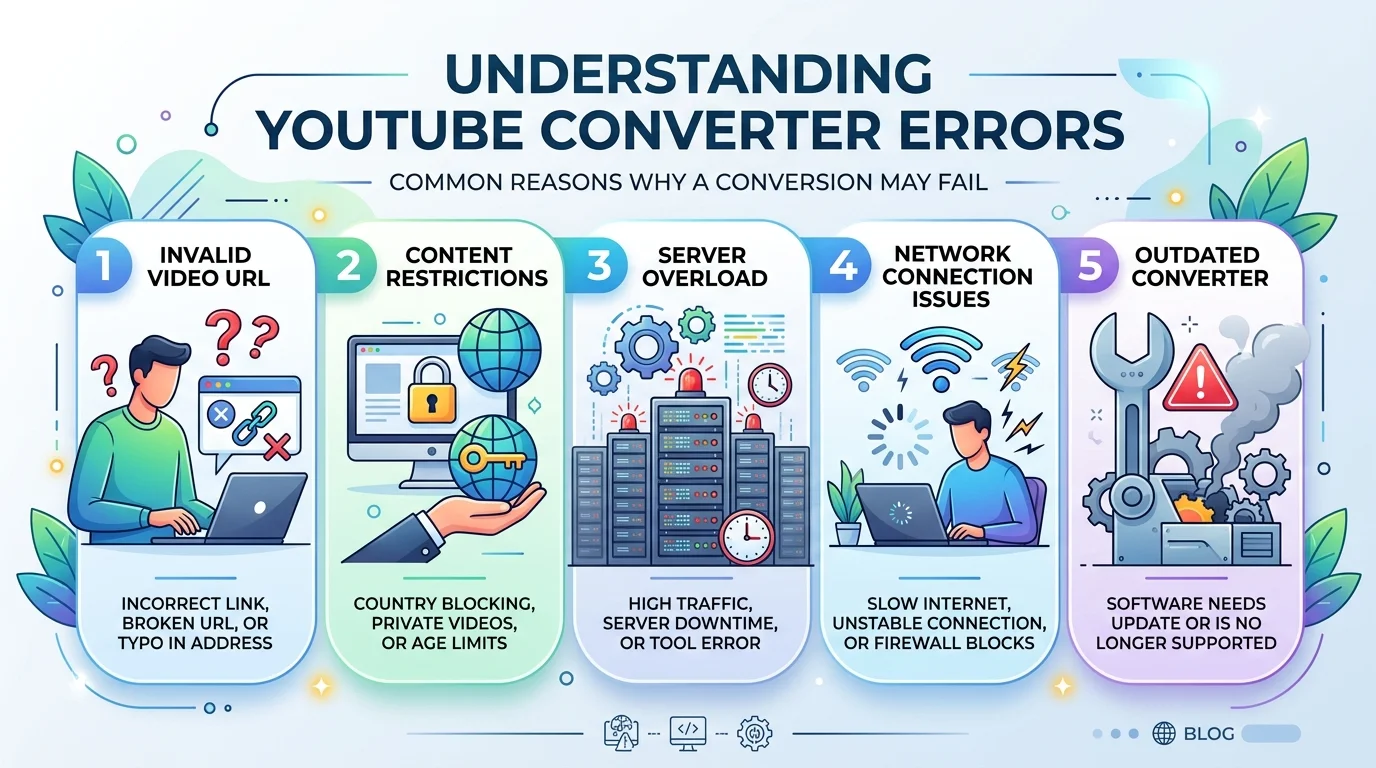
A YouTube converter error almost always comes down to one of three things: outdated converter software, a network/connectivity issue, or a copyright/platform restriction. As of 2026, most errors resolve within minutes once you identify which of these three categories you're dealing with — no technical background required.
I'll be honest with you — I've been there. You paste a link, hit convert, and instead of your file... you get a wall of red text. Annoying, right?
Here's the thing. Once you know what's actually happening behind the scenes, fixing it takes minutes, not hours. In this guide, I'm walking you through exactly why converters break, how to diagnose your specific error, and what actually works to get your downloads flowing again. If your download is failing outright rather than throwing a format error, this ties closely into a YouTube download failure, which shares a lot of the same root causes. Let's dig in.
What Actually Causes a YouTube Converter Error?
Quick gut check before we go further: most converter errors fall into three buckets — outdated software, connectivity issues, or platform-side restrictions. That's it. Once you know which bucket you're in, the fix becomes obvious.
Let me break each one down.
1. Outdated Software (The #1 Culprit)
YouTube changes its backend constantly. Seriously — YouTube frequently updates the way it delivers video streams, and when that happens, converters that were working perfectly yesterday just... stop.
Sometimes there's no error message at all. You'll just get a blank screen or an empty download area. Looks like the video is broken. It's not. It's the tool.
The fix? Always run the latest version of your converter. Developers push updates specifically to patch these breaks — skipping them is basically asking for trouble.
2. Network and Connectivity Problems
This one's sneaky because it doesn't always look like a network issue.
You might see a timeout. A stalled progress bar. A file that downloads to 90% and then just... dies. Sound familiar?
Here's what I do when this happens:
Restart my router (yes, the classic move — it works more than it should)
Run a quick speed test
Switch from Wi-Fi to a wired connection if I can
Try a different network entirely (mobile hotspot is my go-to test)
If the video converts fine on a different network, you've found your problem.
3. Copyright and Platform Restrictions
Now, this is the one people don't want to hear, but I'd be doing you a disservice if I skipped it.
Some content simply can't be converted — and it's not a bug. Videos protected by copyright restrictions or geo-blocked in your region will fail no matter which tool you use. It's worth being upfront: converting copyrighted YouTube content generally violates YouTube's Terms of Service and can raise real copyright law concerns, so this guide is really meant for content you own, content that's licensed for reuse, or material in the public domain.
If you're working with Creative Commons videos or your own uploads, you're in safe territory. If you're not sure, check before you convert.
Common Error Messages (and What They Actually Mean)
Error / Symptom | Likely Cause | Fastest Fix |
|---|---|---|
Error Code 224003 / "Click to Enable" | Browser media player conflict (Chrome/Firefox) | Clear cache, disable extensions |
Blank download area, no error shown | Converter hasn't updated for a recent YouTube change | Update converter or switch tools |
"Unsupported format" | Output format incompatible with device | Switch to MP4 or MP3 |
Download stalls at ~90% | Connection drop or low storage | Free up space, check Wi-Fi |
Conversion fails instantly, every tool | Video is private, removed, or copyright-restricted | Verify availability before converting |
This table is worth bookmarking — it's the fastest way to self-diagnose without reading through paragraphs every time.
"Click to Enable" or Error Code 224003
This one shows up mostly on Chrome and Firefox. It's tied to a conflict between the browser's built-in media player and a browser extension or plugin — not the converter itself.
Quick fixes, in order:
Clear your browser cache and cookies
Disable extensions one at a time (ad blockers are usually the culprit)
Try a different browser entirely
Restart your computer (I know, I know — but it genuinely works)
"Unsupported Format" Errors
This pops up when your chosen output format doesn't play nice with your device. Pick a more universal format like MP4 for video or MP3 for audio, and confirm your converter actually supports it before you hit go.
Downloads That Stall or Corrupt Mid-Process
Nine times out of ten, this is either a connection interruption or your device running low on storage. Free up some space, double-check your Wi-Fi signal strength, and try again. If this keeps happening across multiple attempts, it's worth reading through why YouTube downloads fail for a more complete breakdown of edge cases.
My Step-by-Step Troubleshooting Checklist
Here's the exact process I run through every time something breaks. Copy this down if you want a shortcut.
Update your converter to the latest version — always step one.
Test your internet connection with a quick speed check.
Verify the video's availability — is it private, region-locked, or removed?
Clear your browser's cache if you're using a web-based tool.
Try a different output format (MP4 and MP3 tend to be the safest bets).
Switch tools if the same error persists across multiple attempts.
Check for storage space before starting any large download.
Run through this list top to bottom, and honestly? You'll solve about 90% of converter issues without ever needing outside help.
Best Practices to Avoid Future Errors
Prevention beats troubleshooting every single time. Here's how I keep my workflow smooth going forward:
Keep your software updated — set a reminder if you have to.
Prepare your URLs in advance rather than converting on the fly.
Stick to reputable, well-maintained converters.
Avoid copyrighted or restricted content — it saves you legal headaches and wasted time.
Bookmark a backup tool for when your primary one has a bad day.
Frequently Asked Questions
Why does my YouTube converter say "unsupported format"?
Your chosen output format isn't compatible with your device or the converter itself. Switch to a widely-supported format like MP4 or MP3 and try again.
Why did my converter stop working overnight with no error message?
This usually happens right after YouTube updates how it delivers video streams. The tool just hasn't caught up yet — check for an update or try again in a day or two.
Is it legal to convert YouTube videos to MP3?
It depends on the content — converting copyrighted material without permission generally violates YouTube's Terms of Service and copyright law. Public domain and Creative Commons content is safe to convert.
Why does my download stall at 90%?
This is typically a dropped connection or insufficient storage space. Free up space and check your network stability before retrying.
What's the fastest way to fix a converter error?
Update your converter first — it resolves the majority of errors, since most failures stem from the tool not keeping pace with YouTube's backend changes.
So, Should You Keep Using a Converter?
Honestly? Yes — if you use one that's actively maintained and you stick to content you're actually allowed to convert.
The tools that survive YouTube's constant changes are the ones getting regular updates and paying attention to user feedback. A converter that hasn't been updated in months will break constantly, no matter how good its interface looks.
My advice: pick a reliable, frequently updated converter, run through the checklist above whenever something goes sideways, and keep your use case squarely within Creative Commons, public domain, or your own original content.
Do that, and you'll spend way less time staring at error messages — and way more time actually getting the files you need.