How to Share Google Calendar: Step-by-Step Guide
To share Google Calendar, go to calendar.google.com on desktop, hover over the calendar in your "My calendars" list, click the three-dot menu, and select "Settings and sharing." From there, you can either add specific people under "Share with specific people or groups" or make the calendar public under "Access permissions for events." You'll also choose a permission level — from view-only to full editing access — before sending the invite.
That's the short version. Now let's go deeper, because there's a lot more nuance here than Google's interface lets on.
I'll be honest with you — the first time I tried to share my Google Calendar with a teammate, I clicked around for ten minutes before I found the right button. If that sounds familiar, you're in the right place.
Let's dive in.
Why You Should Bother Sharing Your Google Calendar
Calendar sharing saves you from the classic "what time works for you?" email thread — the one that goes back and forth five times before anyone books a meeting.
When you share your calendar, people can see your availability instantly. No guessing, no back-and-forth.
If you run a business, a shared calendar for teams means everyone stays synced without a single status-update meeting. This pairs well with other scheduling habits — for instance, if you're often away, it's worth pairing your shared calendar with a solid out-of-office message so people know exactly when you'll respond. Once it's set up, you genuinely won't go back to manual scheduling.
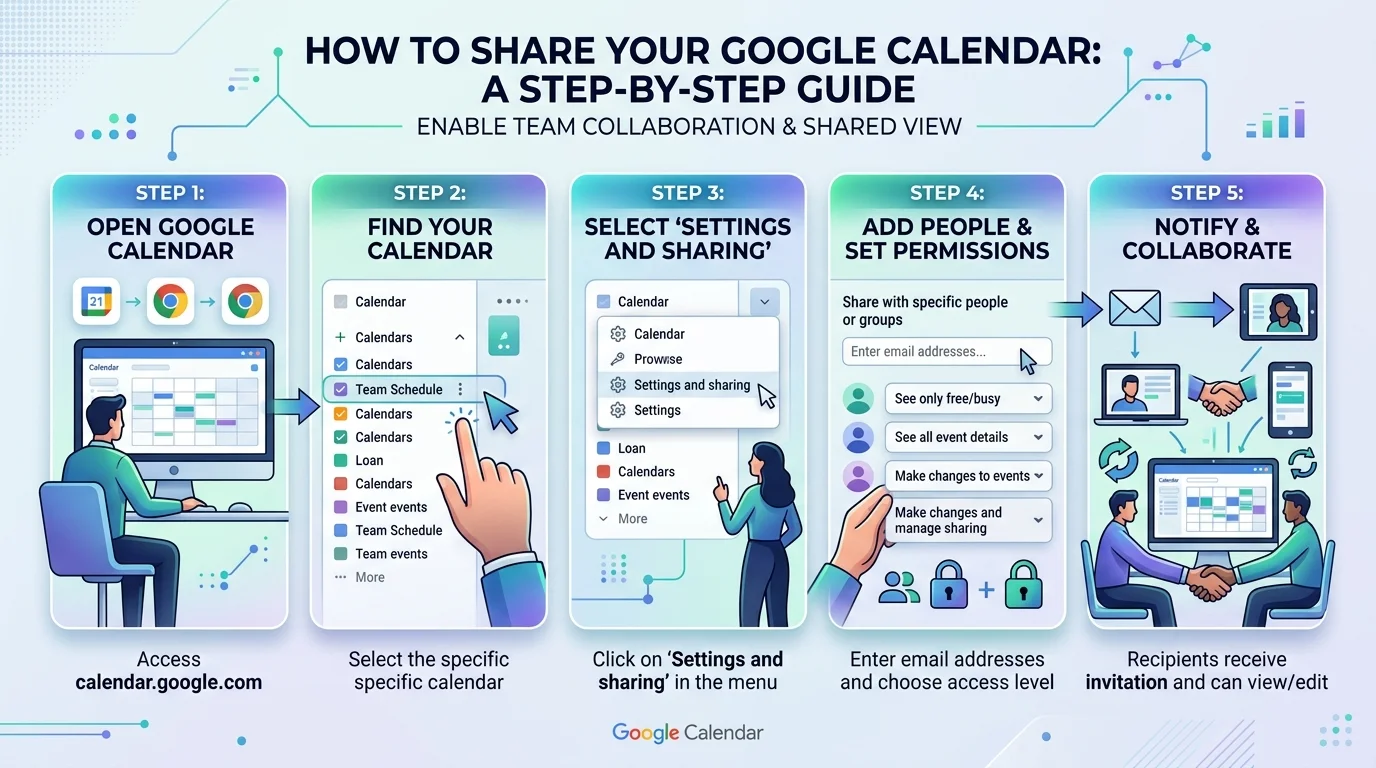
Step 1: Open Google Calendar on Desktop
Here's something that trips people up constantly: you cannot fully share a calendar from the mobile app. Full calendar sharing — especially public sharing — only works on desktop.
So head to calendar.google.com in a browser on your laptop or desktop. Once you're in, look at the left sidebar for the "My calendars" section. That's your starting point.
Step 2: Find Settings and Sharing
Hover your mouse over the calendar you want to share. Three dots will appear next to it — click them, and select "Settings and sharing."
This page is the control center for everything related to Google Calendar permissions. Scroll down — this is where the real options live.
Step 3: Choose How You Want to Share
You've got two main paths here: share with specific people, or make the calendar public. Both live in that same settings panel, just in different sections.
Sharing With Specific People or Groups
This is the most common route, and the safest one for privacy.
Scroll to "Share with specific people or groups" and click "Add people and groups." Type in the email address of whoever needs access — a coworker, an assistant, or an entire team via a Google Group.
According to Google's official documentation, you can share a calendar with up to 75 people per day — worth knowing if you're rolling this out to a large team at once.
Once you add someone, you'll set their calendar access permissions. This part matters a lot, so here's a side-by-side breakdown:
Permission Level | Who It's For | What They Can Do |
|---|---|---|
See only free/busy | Clients, external contacts | See when you're busy — no event names or details |
See all event details | Colleagues, collaborators | View titles, times, locations, descriptions — no editing |
Make changes to events | Assistants, scheduling partners | Edit existing events and add new ones |
Make changes and manage sharing | Co-owners, trusted admins | Full control, including sharing with others |
My rule of thumb: default to the lowest permission that gets the job done, then upgrade later if needed.
Once you've chosen a level, hit Send. The person gets an email with a link, and they're in.
Making Your Calendar Public
If you want anyone with the link to see your schedule — for a personal blog, an event calendar, or a public-facing business — you'll want to make your calendar public.
In the same settings page, find "Access permissions for events" and check "Make available to public." Google will show a warning confirming that anyone can view it — click OK to proceed.
Then pick your visibility level: full event details, or just free/busy. I'd lean toward free/busy unless you're intentionally publishing event info, like a community calendar.
Step 4: Grab Your Shareable Link or Embed Code
Once your calendar is public, scroll to "Integrate calendar." You'll find:
Public URL — a straightforward link you can paste anywhere
Embed code — an iframe snippet for your website
iCal address (.ics link) — for syncing with other apps
That last one lets you sync your Google Calendar with Outlook or Apple Calendar. Anyone can subscribe using that iCal link, and it updates automatically on their end.
Want it on your website? You can embed Google Calendar directly into a WordPress page using that embed code. And if you're already deep into organizing your Google Workspace tools, it's a good time to also clean up duplicate entries in Google Sheets so your linked data stays tidy across apps.
Step 5: Know How to Stop Sharing
Go back into Settings and sharing. For public access, uncheck "Make available to public" — the link dies instantly. For specific people, find their name under the sharing list and click Remove. Access is revoked immediately, no delay.
Troubleshooting: Common Sharing Problems
Here are the issues people run into most, based on real user reports:
"My shared calendar isn't showing up for the other person." They likely haven't accepted the invite yet. Ask them to check their email — including spam — and click the link to add it.
"The public link shows 'Not Found.'" You probably copied the Secret iCal address instead of the Public one. Go back to "Integrate calendar" and copy the Public HTML or Public iCal URL instead.
"My sharing options are greyed out." If you're on a Google Workspace account, your admin may have restricted external sharing at the domain level. Contact IT to adjust the setting.
"Private events are showing up anyway." If someone has "See all event details" access, marking an event "Private" won't fully hide it — that permission level overrides the privacy flag. Use "See only free/busy" for anyone you don't fully trust with details.
"The calendar shares, but updates aren't syncing." This is usually a caching issue on mobile. Refresh the app or reload the page — large changes can also take a few minutes to propagate.
Frequently Asked Questions
Can I share just one event instead of my whole calendar?
Not directly through calendar-level sharing. Instead, open the specific event and add guests under "Add guests" — this puts a copy of that one event on their calendar without giving them access to anything else.
Can someone edit my calendar after I share it?
Only if you grant them "Make changes to events" or higher. The default and most common setting only allows viewing.
Is Google Calendar sharing free?
Yes. Sharing calendars, whether with specific people or publicly, is a free feature available to all Google accounts, including Workspace accounts (unless restricted by an admin).
Can I share my calendar from my phone?
Partially. You can add people to a calendar from the mobile app, but full public sharing and embed code generation require desktop.
How many people can I share a calendar with?
Google allows sharing with up to 75 people per day per calendar.
Will people know if I remove their access?
They won't get a notification, but the calendar will disappear from their list the next time it syncs.
Wrapping This Up
Sharing a Google Calendar isn't hard — it's just hidden behind a few extra clicks. Once you know where the buttons live, the whole process takes under two minutes.
Whether you're syncing with a teammate, building a public event calendar, or embedding your schedule on a website, the steps stay the same: settings, permissions, share.
So go ahead — open Google Calendar, click those three dots, and get your schedule working for you instead of against you.