Speed Up Video on iPhone (Fast & Easy Guide)
You can speed up video on iPhone using the built-in Photos app (works only on footage shot in Slo-mo), the free iMovie app (works on any video, up to 2x speed), or a third-party video speed editor like CapCut if you need faster speeds. Below, I'll walk you through all three — step by step.
So you've got a video that's just... too long. Maybe it's a boring commute, a slow cooking process, or a clip you want to turn into a punchy Instagram Reel. I get it. And honestly? Learning how to speed up a video on iPhone is way easier than most tutorials make it sound.
Let's fix that today.
I'm going to walk you through every single method — from the free built-in Photos app, to iMovie, all the way to third-party apps that go beyond Apple's limits. As of iOS 18 (2026), Apple's own tools have gotten noticeably better, so I'll flag what's changed too.
No fluff. Just steps you can follow right now.
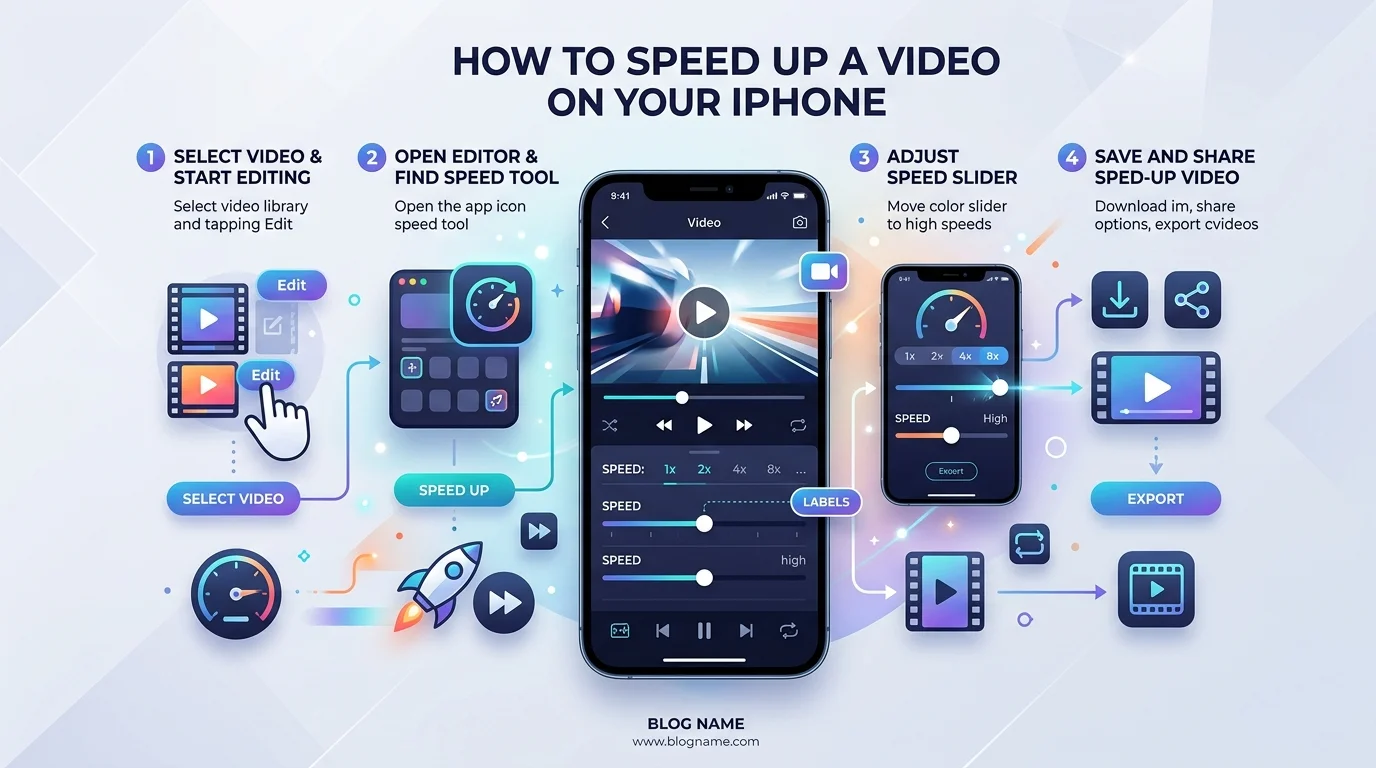
Why Speed Up Your iPhone Videos In The First Place?
Here's the thing — nobody has time for a five-minute clip anymore.
Attention spans are short. Feeds move fast. And if you're creating content for TikTok, Reels, or YouTube Shorts, playback speed isn't just a nice-to-have — it's a storytelling tool.
Speeding up footage can turn a dull 10-minute recording into a snappy 30-second highlight. It can also fix awkward pacing, create dramatic time-lapse effects, or just make your video feel more alive.
Basically: faster pacing = better viewer engagement. That's not opinion, that's just how modern content consumption works. Once your video's trimmed to the right pace, you'll also want to know how to send long videos on iPhone if file size becomes an issue when sharing.
Quick Comparison: Which Method Should You Use?
Before we dive into the steps, here's a side-by-side so you can pick the right tool in ten seconds:
Method | Max Speed | Cost | Pitch Control | Best For |
|---|---|---|---|---|
Photos app | Depends on format | Free (built-in) | No | Slo-mo footage only |
iMovie | 2x | Free | Yes (toggle on/off) | Regular videos, precise ranges |
CapCut / InShot / Videoleap | Up to 8x–10x | Free (with in-app purchases) | Varies | Social content, fast edits |
Now let's break each one down.
Method 1: Use The Built-In Photos App (Fastest, Zero Downloads)
Okay, let's start with the easiest option — because most people don't even realize this is sitting right there on their phone.
Apple quietly built a playback speed editor into the native Photos app, and with iOS 18, it got even better.
Here's the catch though (and I want to be upfront about this): according to Apple's own support documentation, the Photos app can only speed up footage that was originally shot in Slo-mo mode. If your video was recorded normally, you'll need to jump to Method 2. But if you did shoot in slow motion, this is genuinely the fastest fix.
Step-By-Step: Speed Up Slo-Mo Footage
Open the Photos app on your iPhone
Tap the video you want to edit
Tap Edit in the top-right corner
Look for the Video tab, then tap the speed icon
Choose your preferred playback speed
Tap Done to save
That's it. Five steps and you're done.
And here's a nice bonus — the iOS 18 Playback Speed editor also lets you fine-tune how high frame rate footage plays back, giving you way more control than older versions ever did.
Method 2: Use iMovie For Full Control Over Speed
Now, if your video wasn't shot in slow motion — which, let's be real, is most of your footage — you're going to want iMovie.
It's free. It's made by Apple. And honestly, it's more powerful than people give it credit for.
With iMovie, you're not just flipping a switch. You get a proper speed slider, the ability to speed up or slow down specific sections of a clip, and even control over whether the audio pitch changes along with the speed.
Let's break it down.
Step-By-Step: Speed Up A Regular Video In iMovie
First, grab the app if you don't already have it — it's a free download from the App Store.
Open iMovie and tap Start New Project
Select Movie, then choose your video clip
Tap Create Movie
Tap the clip in your timeline to open the inspector
Tap the Speed button (it looks like a little speedometer)
Drag the yellow bar's slider to the right to speed things up — you can go up to 2x the original speed
Tap Done to save your changes
Pretty simple, right?
One thing worth knowing: Apple's support documentation confirms that iMovie preserves the original pitch of your audio by default when you change speed. If you want that classic chipmunk-voice effect, though, you can turn this off in Project Settings by toggling "Speed changes pitch." Kind of fun, honestly.
Bonus: Create Speed Ranges Within One Clip
Here's a pro move most people miss.
You don't have to speed up an entire clip uniformly. In iMovie, you can drag those range handles to apply different speeds to different sections of the same clip — meaning you could have a slow intro that suddenly rockets into fast-motion halfway through.
It's a subtle trick, but it makes your edits feel way more cinematic. If you're editing on desktop instead, the same logic applies when you trim a video in VLC before adjusting playback speed.
Method 3: Third-Party Apps (When You Need More Than 2x)
Now let's talk about when Apple's tools just aren't enough.
iMovie caps out at 2x speed. If you want to go faster — like turning a two-minute clip into fifteen seconds — you'll need dedicated video speed editor apps.
A few worth checking out, based on my research as of 2026:
CapCut — free, beginner-friendly, and widely used for social content, per CapCut's own guide
InShot — great for quick edits with speed ramping
Videoleap — more advanced, ideal if you want precise speed curve control
YouCam Video — intuitive interface, solid for beginners, according to Perfect Corp's tutorial
Most of these apps let you crank speed up to 8x or even 10x, apply speed changes to isolated sections, and export in full resolution — often without a watermark, depending on the app.
Here's my honest take: if you're just doing occasional edits, stick with the free Photos app or iMovie. But if content creation is part of your regular routine, investing time in a dedicated app genuinely pays off. The extra control over speed ramping and precision editing makes your videos look noticeably more professional.
What About Time-Lapse Videos?
Quick note here because people always ask.
Time-lapse is technically already sped-up footage — your iPhone captures frames at intervals and plays them back quickly, so hours of footage compress into seconds. If you want to adjust an existing time-lapse video, you can do that through the Photos app, using the same speed-slider process as slow-mo clips.
Frequently Asked Questions
Can you speed up a video past 2x on iPhone?
Not with iMovie alone — it caps at 2x. To go faster (up to 8x-10x), use a third-party app like CapCut, InShot, or Videoleap.
Does speeding up a video change the audio pitch?
Yes, by default. iMovie automatically raises the pitch of audio when you speed up a clip and lowers it when you slow one down. You can turn this off in Project Settings by disabling "Speed changes pitch."
Why can't I speed up my video in the Photos app?
The Photos app only supports speed adjustments on footage originally recorded in Slo-mo mode. For regular videos, you'll need iMovie or a third-party editor.
What's the easiest way to speed up a video on iPhone without an app?
If your video was shot in Slo-mo, the built-in Photos app requires zero downloads — just open the video, tap Edit, and adjust the speed slider.
Can I speed up only part of a video, not the whole thing?
Yes. In iMovie, you can drag the range handles on a clip to apply different speeds to different sections of the same video.
Final Thoughts: Which Method Should You Actually Use?
Honestly? It depends on what you're doing.
Shot in Slo-mo and just want it back to normal speed → use the Photos app
Want more control, speed ramping, or pitch adjustment → use iMovie
Need speeds beyond 2x, or want pro-level polish → grab a third-party app like CapCut or Videoleap
Whatever you choose, the goal is the same: tighter pacing, better engagement, and videos that actually hold attention.
Give one of these methods a shot on your next clip. I promise — once you see how much punchier a sped-up edit feels, you won't go back to posting raw, unedited footage again.