How to Trim Video in VLC (Free & Easy)
How to Trim Video in VLC (Step-by-Step Guide)
Here's the short answer: VLC trims video in two ways — either you hit the red Record button to capture a section live, or you use the Convert/Save menu to cut at exact timestamps. Both are free, built into VLC already, and require no downloads.
Now let's talk about how I actually use these — and where they fall short.
You want to trim video in VLC without downloading a new app, right? Good news: you already have everything you need.
I've cut hundreds of clips in VLC over the years — quick highlight reels, meeting recordings, gameplay snippets — and I'm going to walk you through exactly how I do it. No fluff. No 20-minute YouTube tutorials. Just the steps.
Here's the thing worth knowing upfront: VLC doesn't technically "cut" your file the way a real editor does. It re-records the section you want. That sounds limiting, but honestly? For 90% of quick trims, it's more than enough.
Let's get into it.
Why VLC Is Worth Using for Quick Video Trims
Before we jump into the how, let's talk about the why. VLC isn't marketed as an editor. But it quietly became one of the most reliable free tools for cutting video clips because it's already installed on millions of machines, it's completely free, and it handles nearly every file format you throw at it.
You don't need an account. You don't need a subscription. You just need the app open.
A few reasons I reach for it first:
It's open-source and free forever
It supports MP4, MKV, AVI, and dozens of other containers
It works identically on Windows, Mac, and Linux
There's zero learning curve if you already use VLC to watch videos
That last point matters more than people think. You're not learning new software — you're using two buttons inside software you already trust. As of the current VLC 3.x release, both methods below still work exactly as described.
What You Need Before You Start
You don't need much here, and that's the beauty of it. Grab your video file, open VLC, and you're basically ready to go.
Quick checklist:
The latest version of VLC media player installed
Your source video file (any common format works) — if you're starting from a YouTube clip, here's how to download YouTube videos first
A rough idea of your start time and stop time
A few minutes of patience — the Record method takes some trial and error
Got all that? Let's move on.
Method 1: Trim Video in VLC Using the Record Button
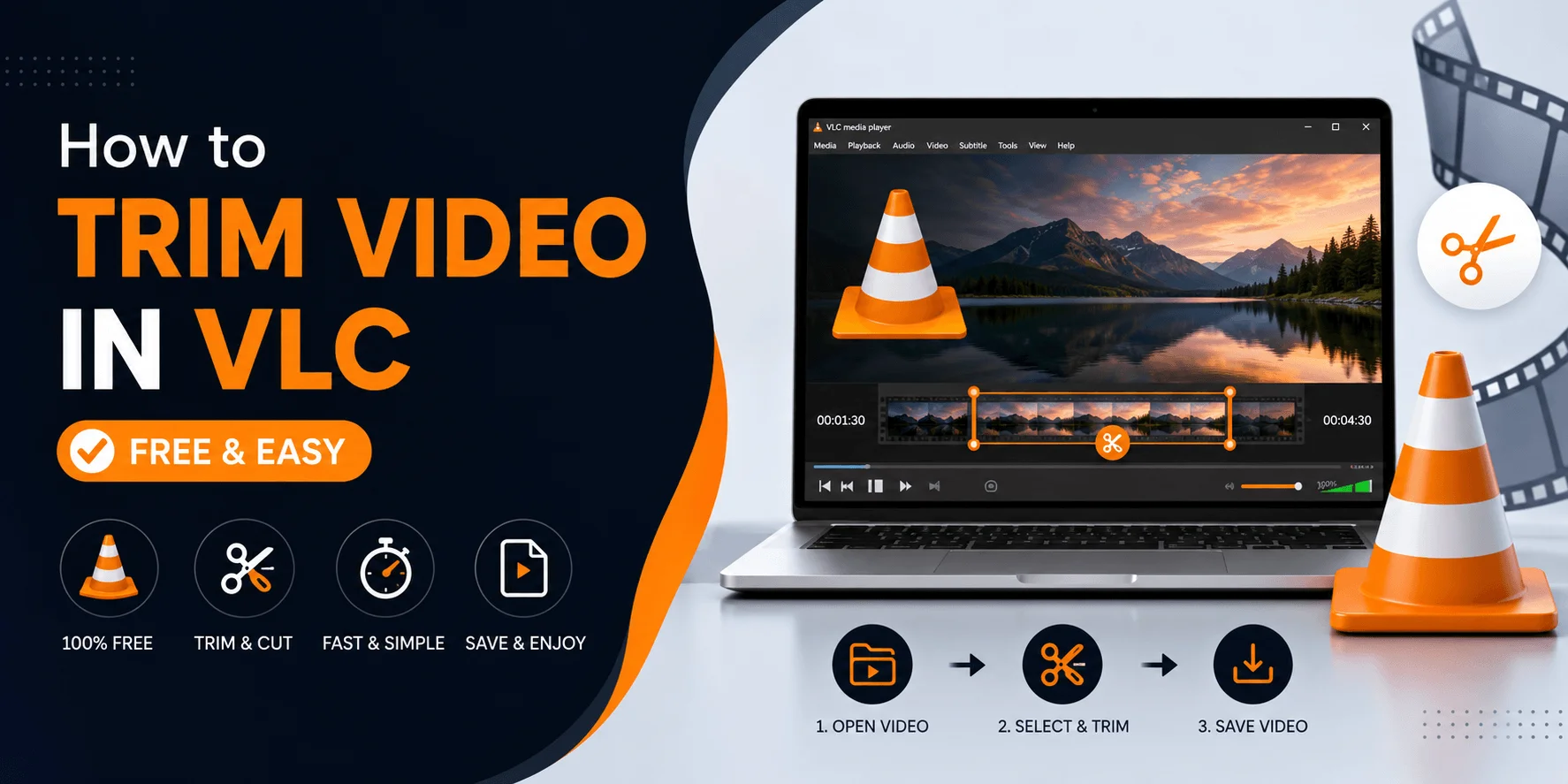
This is the fastest method, and it's the one most people default to. Here's how I do it.
Step-by-Step: Record Method
Open your video in VLC (Media > Open File)
Go to View > Advanced Controls to reveal the recording toolbar
Play the video and pause right at your intended start point
Click the red Record button
Let it play through the section you want to keep
Click Record again at your end point to stop
That's it. VLC quietly saves your trimmed clip — usually in your default Videos folder, though you can change this under Tools > Preferences > Input/Codecs > Record Directory, as How-To Geek explains in detail.
One honest heads-up: this method isn't frame-perfect. If you need exact precision, keep reading, because Method 2 is your friend.
Method 2: Trim Video in VLC Using Convert/Save (Precise Timestamps)
If you already know the exact seconds you want, skip the Record button entirely and use Convert/Save instead. This is the method I use for anything client-facing.
Step-by-Step: Convert/Save Method
Go to Media > Convert/Save
Click Add, then select your file
Check Show more options at the bottom of the window
Enter your start time and stop time (many versions use HH:MM:SS:MS format)
Choose an output profile — H.264 + MP3 is a safe, universal pick
Click Browse to pick your destination file
Hit Start (or Convert/Save) to export
Simple, right? The trade-off is that this method re-encodes your video, which takes a bit longer than the Record method but gives you much tighter control.
Method 3: Trim Video in VLC via Command Line (For Power Users)
Not everyone needs this, but if you're trimming the same type of file repeatedly, a command-line script — as documented by UC Davis IT — saves serious time.
Here's the basic structure:
"%programfiles%\VideoLAN\VLC\vlc.exe" source.mp4 --start-time=10 --stop-time=120 --sout "#gather:std{access=file,dst=output.mp4}" --sout-keep vlc://quitYou just swap in your start and stop times (in seconds), save it as a .bat file, and double-click to run it. I use this for batch jobs when I've got a dozen clips to cut from the same source.
Compare the Three Methods at a Glance
Method | Precision | Speed | Re-encodes? | Best For |
|---|---|---|---|---|
Record Button | Low–Medium | Fast | No | Quick, one-off clips |
Convert/Save | High (timestamp-based) | Medium | Yes | Precise cuts, client work |
Command Line | High | Fast (batch) | Yes | Repetitive, batch trimming |
If you only remember one thing from this table: use Record for speed, Convert/Save for accuracy, and Command Line when you're doing this over and over.
Common VLC Trimming Problems (and How I Fix Them)
Let's be real for a second — VLC isn't a professional editor, so things occasionally go sideways. Here's what usually causes headaches, and my fix for each one. (For more format and playback fixes like this, check our full troubleshooting guides.)
Choppy or inaccurate cuts: This almost always comes down to keyframes, as DVDFab's guide points out. Many codecs can only cut cleanly at a keyframe, so your trim might land a second or two off. Nudge your start time slightly and re-export.
Audio out of sync: Re-encode the clip again through Convert/Save using a standard MP4/H.264 profile. This fixes it nearly every time.
Missing output file: Double-check your Record Directory under Preferences — VLC won't pop up a "done!" notification, so it's easy to think it failed when it didn't.
When You Should Upgrade From VLC
I'll be straight with you: VLC is fantastic for one-off trims, but it starts to feel clunky once you need multiple cuts, transitions, or frame-accurate precision across a whole project.
If that's you, here are three tools worth trying instead:
Avidemux — free, open-source, built specifically for simple cutting and re-encoding with more control than VLC
Shotcut — free timeline editor if you need transitions or multiple clips stitched together
Bandicut — a paid option with a "High-Speed Mode" that trims without re-encoding at all, preserving 100% original quality
For casual, occasional trims, though? Stick with what you've already got installed. There's no reason to complicate something this simple.
FAQ: Trimming Video in VLC
Does trimming in VLC reduce video quality?
The Record method can introduce minor quality loss since it re-encodes on the fly. Convert/Save gives you more control over the output profile, so choosing a high-bitrate H.264 setting keeps quality close to the original.
Can I trim a video in VLC without re-encoding?
Not natively — both VLC methods re-record or re-encode the file. If you need a true lossless cut, a tool like Bandicut's High-Speed Mode is built specifically for that.
Is VLC trimming free?
Yes. VLC is completely free and open-source, and neither trimming method requires a purchase, subscription, or license.
How long does trimming a video in VLC take?
The Record method is roughly real-time — a 2-minute clip takes about 2 minutes to capture. Convert/Save depends on file size and profile, but most short clips finish in under a minute.
Why can't I find my trimmed video after using Record?
VLC doesn't show a confirmation popup. Check your default Videos folder, or the custom path set under Tools > Preferences > Input/Codecs > Record Directory.
What's the best VLC output format for trimmed clips?
MP4 with H.264 video and AAC or MP3 audio is the safest choice — it plays everywhere and keeps file sizes reasonable.
Final Thoughts
Trimming video in VLC isn't glamorous, but it works — and it's already sitting on your computer, ready to go. Use the Record button when you want something fast and rough. Use Convert/Save when precision matters. And if you're doing this often enough that it's eating your afternoon, tools like Avidemux or Shotcut are worth the switch.
Either way, you now know exactly how to trim video in VLC — all three ways. Go cut something.