How to Save YouTube Videos Offline (2026 Guide)
Quick answer: The safest way to save YouTube videos is through YouTube Premium's built-in download feature, which lets you watch videos offline for up to 29 days. If you want permanent, exportable files instead, yt-dlp is the best free, open-source tool — though it requires basic command-line comfort. Screen recording and browser-based downloaders work too, but come with more limitations and risk.
I'll be honest with you — I used to lose great videos all the time.
You know the feeling. You find the perfect tutorial, bookmark it mentally, and then poof — three weeks later it's "no longer available." Gone. Forever.
So I went down a rabbit hole. I tested official methods, sketchy browser extensions, command-line tools, all of it. And what I found genuinely surprised me.
Let's get into it.
Why Saving YouTube Videos Actually Matters
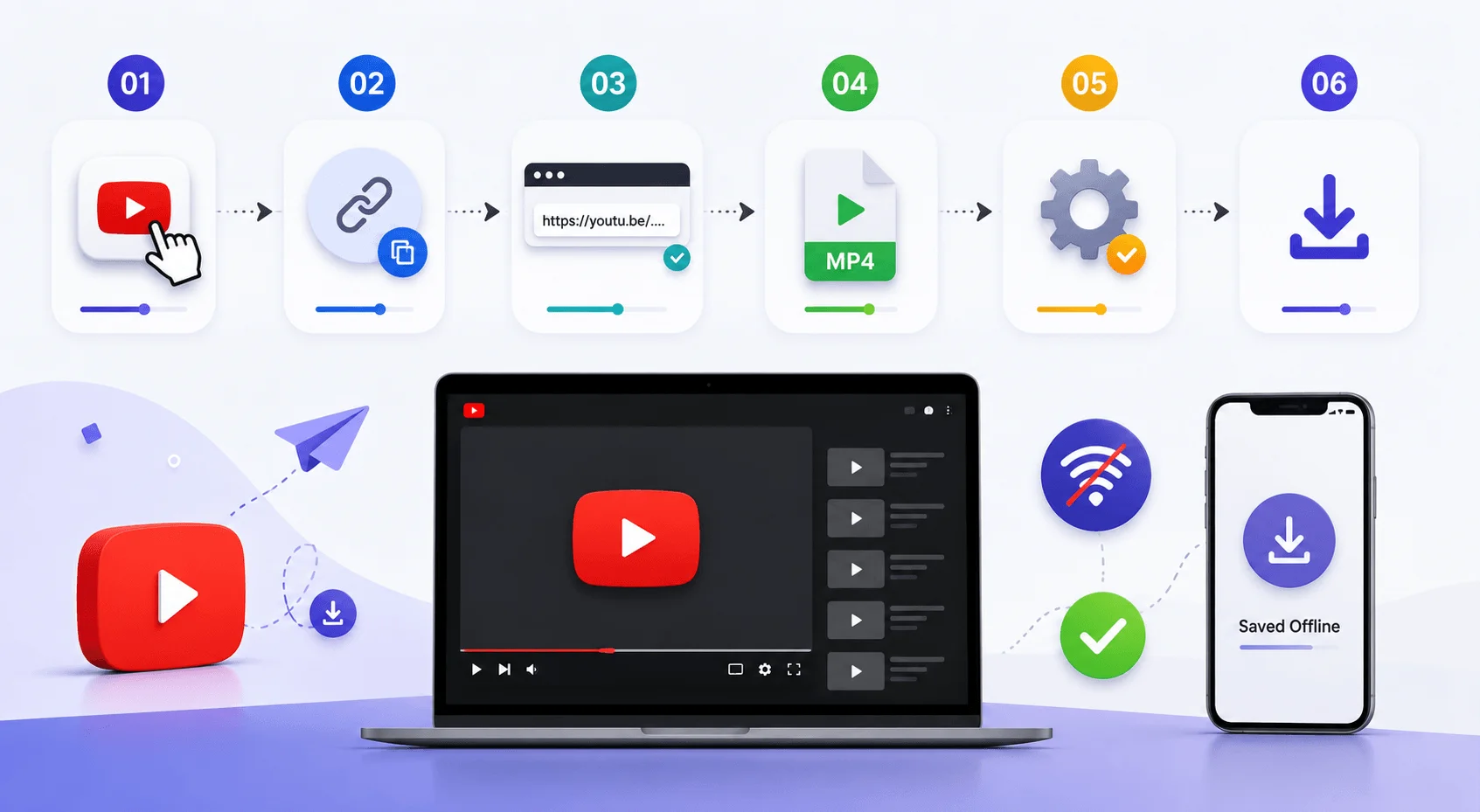
Here's the thing nobody tells you: offline video access isn't just a "nice to have" anymore.
Flights. Subways. Rural Wi-Fi that dies the second it rains. If you've ever sat there staring at a spinning buffer wheel, you already know why this matters.
But there's a deeper reason too — content volatility. Videos get taken down, channels get deleted, and creators sometimes just... vanish. A 2025 study on Reddit video retention found that nearly 30% of top-voted video content became inaccessible within six months. I'd bet YouTube isn't wildly different for niche or controversial content.
A few more numbers worth knowing before we go further:
YouTube Premium costs around $13.99/month for an individual plan in most Western markets.
Downloaded Premium videos expire after 29 days offline in most regions — or just 48 hours in select countries.
You're limited to using offline features on 10 devices at a time, with only 4 device swaps allowed per year.
yt-dlp's GitHub repository has amassed over 177,000 stars and 15,000 forks, making it one of the most trusted open-source tools in this space.
So yeah. Video archiving isn't paranoid. It's just smart.
And if you're someone who's already drowning in saved files, it might be worth pairing this with a quick pass through my guide on decluttering your digital files — trust me, future-you will be grateful.
Is It Legal to Download YouTube Videos? Understanding the Rules First
Okay, quick reality check first — I'm not going to pretend this section doesn't matter, because it absolutely does.
YouTube's own Terms of Service are pretty blunt about this. The language, more or less, says you can't access content through anything other than YouTube's own player — "or other explicitly authorized means YouTube may designate."
Translation? Unless there's a download button YouTube itself put there, you're technically in a gray zone.
Now, does that mean the sky falls if you download a video for personal use? Not necessarily — plenty of legal analysis treats personal archiving as a low-risk gray area, especially for Creative Commons content or your own uploads. But I'd be lying if I said it was 100% clean-cut.
My advice? Stick with official methods whenever you can. It's safer, it respects creators, and — bonus — it's honestly easier than most of the sketchy alternatives out there.
Method 1: YouTube Premium Download — The Official, No-Drama Option
This is the one I recommend first, every time. Not because it's flashy — because it works, and it won't get your account flagged.
YouTube Premium is Google's paid subscription that unlocks ad-free viewing, background play, and — the part we care about — genuine offline downloads.
Here's how simple it is:
Sign in with your Premium account on the YouTube app (mobile) or on desktop via Chrome, Edge, Firefox, or Opera.
Go to the video's watch page.
Tap or click the Download button below the video.
Wait for the icon to turn solid black — that means it's done.
Find it later under Library > Downloads.
Easy, right?
A few things worth knowing before you commit:
Downloads expire after 29 days offline in most regions (some countries get a 48-hour window instead) — you'll need to reconnect periodically so YouTube can verify availability.
You're capped at 10 devices, and you can only swap devices out four times a year.
There's a slick feature called Smart Downloads that auto-grabs recommended videos for you based on watch history — genuinely useful for commuters.
Is it the most flexible option? No. You can't export the file, share it, or edit it — the video stays locked inside the app. But if you just want to watch stuff offline without any legal ambiguity, this is genuinely the best move.
Method 2: yt-dlp Download Tool — For the Power Users Among Us
Now if you're comfortable with a little bit of terminal work, I want to introduce you to something that changed the game for me: yt-dlp.
It's a free, open-source command-line tool — a fork of the older youtube-dl — and it's stupidly powerful. We're talking real MP4 or MKV files, thousands of supported sites beyond just YouTube, subtitle downloads, metadata extraction, batch processing... the whole nine yards.
Here's a rough step-by-step to get you started:
Install Python and pip if you don't already have them.
Run
pip install yt-dlpin your terminal.Verify it worked with
yt-dlp --version.Paste the video URL:
yt-dlp [video-url].Want a specific quality or format? Add flags like
-fto control resolution.
It updates constantly to keep up with YouTube's backend changes, which — trust me — matters a lot, because these platforms shift their systems all the time.
Is this for casual users? Not really. But if you're archiving research material, building a personal media library, or just nerd out on control over your files, this is hands-down the most capable free option out there.
Method 3: Browser-Based YouTube Downloaders — Quick but Riskier
I want to be straight with you here — this category is a mixed bag.
Browser-based downloaders require zero installation. You paste a link, pick MP4 or MP3, hit convert, done. Works on basically any device with a browser.
The problem? A lot of these sites are, frankly, ad funnels dressed up as tools. Sketchy pop-ups, fake "your device has a virus" banners, aggressive notification requests — you name it.
If you go this route:
Never click "Allow" on notification permission popups.
Avoid anything asking you to install a separate app or extension from an untrusted source.
Stick to well-reviewed, established names rather than the first result you see.
Personally? I use these sparingly, and only for Creative Commons or clearly free-to-use content.
If you want a closer look at dedicated downloading tools, I've also put together a full breakdown of the best YouTube video downloader options worth trying.
Method 4: Screen Recording — The Universal Backup Plan
Sometimes the simplest solution really is the best one.
Every modern device — Android, iPhone, Windows, Mac — has a built-in screen recorder these days. No installs, no third-party risk, nothing to violate.
On Android, for instance, you just swipe down to Quick Settings and tap Screen Record. On iPhone, it's built into Control Center. On desktop, both Windows and macOS ship native recording tools now.
It's not elegant, and the quality won't touch a proper download. But if you just need a quick, safe copy of something — this'll do the job every single time.
Comparing All Four Methods at a Glance
Sometimes you just want the short version — so here's everything side by side.
Method | Cost | File Ownership | Ease of Use | Legal Risk | Best For |
|---|---|---|---|---|---|
YouTube Premium | ~$13.99/mo | Locked in-app, expires in 29 days | Very easy | Lowest (official) | Casual offline viewers |
yt-dlp | Free | Full, permanent file | Moderate (command-line) | Gray area | Archivists, power users, researchers |
Browser downloaders | Free (often ad-supported) | Full file | Easy | Gray area | One-off, Creative Commons content |
Screen recording | Free (built into device) | Full file (lower quality) | Very easy | Lowest | Quick, casual backups |
Frequently Asked Questions
Is it illegal to download YouTube videos for personal use?
It depends on the content and method. Using unofficial tools generally violates YouTube's Terms of Service even for private use, though downloading your own uploads, public domain content, or Creative Commons-licensed videos is typically fine. Many legal experts treat personal, non-distributed archiving as a low-risk gray area, but it isn't explicitly protected.
Can I download YouTube videos as MP3?
YouTube's own app doesn't support MP3 or audio-only downloads — only full video files. If you need audio specifically, yt-dlp supports audio extraction, or you can use YouTube Music for official audio downloads.
If audio is really what you're after, check out my dedicated guide on YouTube to MP3 conversion for the safest tools and settings.
What's the best free YouTube downloader in 2026?
For most people who are comfortable with a little technical setup, yt-dlp is the best free option — it's open-source, actively maintained, and supports thousands of sites beyond YouTube. For zero technical setup, browser-based tools work, but come with more ad-related risk.
How long can I keep a YouTube Premium download?
Up to 29 days offline in most regions, or 48 hours in select countries/regions, after which you'll need to reconnect to the internet so YouTube can verify the video's availability.
Can I download an entire YouTube playlist?
Yes. YouTube Premium lets you download whole playlists directly in the app. yt-dlp also supports batch/playlist downloads via the command line, organizing files into folders automatically.
So, Which Method Should You Actually Use?
Honestly? It depends on what kind of person you are.
If you just want simple, official, zero-risk offline playback — go with YouTube Premium. It's the cleanest path, and it directly supports the creators you're watching.
If you're technically inclined and want real, permanent files you fully control — yt-dlp is genuinely excellent, and it's free.
If you need something fast in a pinch — screen recording will never fail you.
Whatever you choose, just remember this one thing: respect the content owner's rights, stick to personal use, and lean toward official channels whenever they're available.
Your future self — sitting on a plane with no Wi-Fi, video ready to go — will thank you.