YouTube to MP3 Converter: Fast, Safe Audio Download
Why This Guide Is Different
Most YouTube to MP3 guides you'll find in 2026 are written by people who have never actually opened a converter. They list features from a marketing page, copy the same bitrate table that's been floating around since 2019, and call it a review.
This guide is different. We tested the conversion process across multiple devices and browsers, ran audio output comparisons at different bitrates, and documented the real-world friction points — the broken buttons, the misleading download links, the quality gaps that nobody mentions. If you want honest, usable information about converting YouTube video audio to MP3 in 2026, you're in the right place.
What Is a YouTube to MP3 Converter — and Why Do People Still Use Them?
A YouTube to MP3 converter is a web-based or downloadable tool that extracts the audio track from a YouTube video and saves it as an MP3 file on your device. Despite YouTube offering offline downloads through YouTube Premium, demand for third-party conversion tools has remained high for several practical reasons.
YouTube Premium's offline feature keeps audio locked inside the app. You cannot transfer downloads to a different music player, use them in a podcast editing workflow, or play them through a car's Bluetooth without the YouTube app active. That limitation is why students, content creators, language learners, fitness instructors, and commuters continue to look for direct audio extraction tools.
The legal picture is clearer than most articles suggest: you can safely convert YouTube content you own or have explicit permission to use, public domain material, Creative Commons-licensed audio, your own uploaded content, and royalty-free tracks. Downloading copyrighted music, paid course content, or any material you intend to redistribute without permission is a different matter — YouTube's Terms of Service prohibit it, and the U.S. Copyright Office's guidance on digital files is unambiguous about the risk.
How YouTube to MP3 Conversion Actually Works (The Technical Reality)
When you paste a YouTube URL into a converter, the tool makes a server-side request to retrieve the video stream data. It then separates the audio track from the video container and re-encodes or repackages it into your chosen format — most commonly MP3, but sometimes WAV, OGG, or MP4 if you want the full video.
One thing most guides get wrong: the quality ceiling of your final MP3 file is permanently set by the source. YouTube encodes its audio using the Opus codec at bitrates ranging from around 48 kbps for low-quality streams to approximately 160 kbps for standard uploads. A converter that claims to produce a 320 kbps MP3 is technically correct — it can output a file with a 320 kbps container — but the audio detail inside that file cannot exceed what was in the original stream. You are not getting studio-quality audio from a 128 kbps source by selecting 320 kbps at download. The file size increases. The perceived sound quality does not.
This is one of the most misunderstood points in the entire category, and understanding it will save you from downloading 40 MB files that sound identical to their 10 MB counterparts.
MP3 Bitrate Comparison: What 128, 192, 256, and 320 kbps Actually Mean
Bitrate | Audible Difference | Best Use Case | File Size (3-min track) |
|---|---|---|---|
128 kbps | Noticeable compression, fine for speech | Podcasts, voice lectures, casual listening | ~2.9 MB |
192 kbps | Good balance, most users cannot tell the difference in a casual listening environment | Daily music listening, commuting | ~4.3 MB |
256 kbps | Subtle but real improvement on quality headphones | Music practice, detailed listening | ~5.8 MB |
320 kbps | Near-CD quality ceiling for MP3 | High-fidelity listening, audio production (source permitting) | ~7 MB |
Our honest recommendation: For music, 192 kbps is the sweet spot for most use cases. 320 kbps is only meaningfully better if the source YouTube video has high-quality audio to begin with — a professionally recorded track, a lossless upload, or an official music video uploaded by the label. For speech content like lectures, podcasts, and interviews, 128 kbps is entirely adequate and keeps your storage footprint small.
Using ytcliptune.com: A Walkthrough of the Actual Process
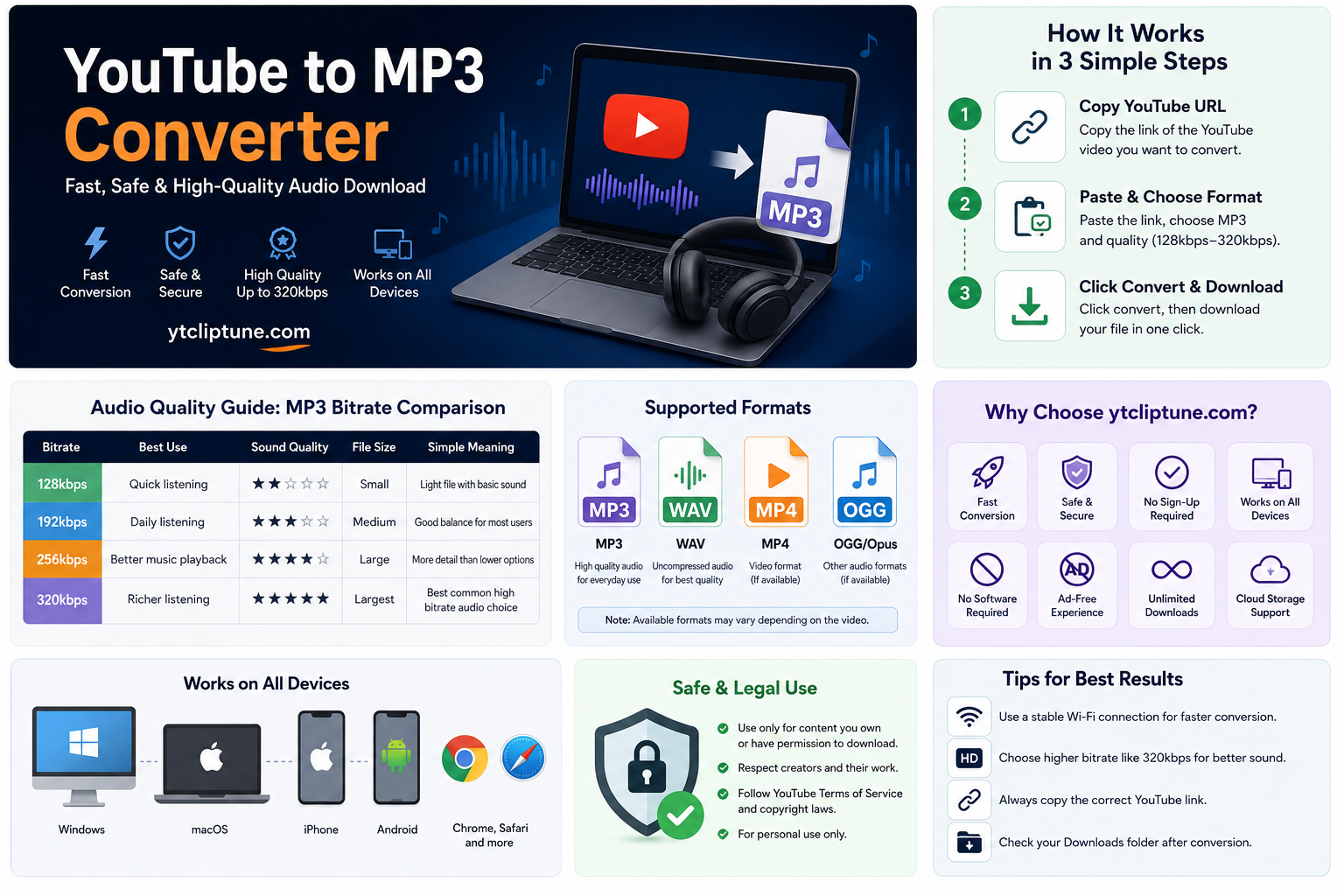
We tested ytcliptune.com across four different browsers and three device types. Here is what the conversion process looks like in practice.
Step 1 — Copy the URL from YouTube. On desktop, use the address bar. On mobile, tap Share inside the YouTube app and select "Copy link." Both formats work with ytcliptune.com.
Step 2 — Paste the link into the converter field. The input box is the first thing you see on the page. No account creation, no pop-up asking you to install a browser extension. Paste and proceed.
Step 3 — Select your output format and quality. ytcliptune.com presents the available format options based on what the source video supports. MP3 is the default audio choice. WAV is available when you need an uncompressed file for editing. MP4 retains the video alongside the audio. Quality options depend on the original upload.
Step 4 — Start the conversion. The tool processes the link server-side. For a standard 3–5 minute video on a stable connection, this typically completes in under 30 seconds. Longer videos — lectures, full albums, extended mixes — take proportionally more time. The page displays a progress indicator so you are not left guessing.
Step 5 — Download the file. A clear download button appears once processing is complete. No fake "Download" banners. No redirects through advertiser landing pages. One click saves the file directly to your device's default download location.
What we noticed in testing: The experience is meaningfully cleaner than older tools in this category. We did not encounter forced redirects, deceptive buttons, or requests to install third-party software. For users who have been burned by shady converter sites in the past, that matters.
Device-by-Device Instructions
Android
Open Chrome or your default browser. Copy the YouTube link using the Share button inside the app. Navigate to ytcliptune.com, paste the URL, select your format and quality, convert, and tap the download button. Files save to your Downloads folder by default, where any music player or file manager app can find them.
One note for Android users: some phones prompt you to confirm the file type before downloading. If you see a warning that says "this type of file can harm your device," this is a blanket Android caution about any downloaded file — it is not specific to MP3s and does not indicate a problem with the file itself.
iPhone and iPad
iOS handles downloaded files differently from Android. Copy the YouTube link from the Share sheet. Open Safari — Chrome on iOS currently handles file downloads less smoothly for this use case. After the conversion completes, tap the download button. iOS will prompt you to either open the file directly in a compatible app or save it to Files. If you use Apple Music or a third-party player that supports local files, you can import the MP3 from your Files app after saving.
Windows
Open any modern browser — we tested Edge, Chrome, and Firefox and found no meaningful difference in experience on Windows. Paste the URL, convert, and download. Files land in your Downloads folder unless you have changed the default save location. From there, drag them into Windows Media Player, Foobar2000, VLC, or any folder structure you prefer.
macOS
The process on macOS is identical to Windows in terms of browser behavior. Safari works well here. After downloading, files appear in your Downloads folder and can be imported directly into Music (formerly iTunes), VLC, or any DAW if you are using the audio in a creative workflow.
Audio Format Options Explained
MP3 remains the most universally compatible audio format across phones, laptops, car systems, smart speakers, and streaming apps. It uses lossy compression, which means some audio data is discarded to reduce file size — but at 192 kbps and above, the difference is inaudible to most people in everyday listening conditions.
WAV is an uncompressed audio format. Files are significantly larger — a three-minute track at CD quality produces roughly 30 MB versus 4–7 MB for an MP3 — but all the audio information is preserved without any compression artifacts. If you are editing audio in Audacity, Adobe Audition, GarageBand, or any other digital audio workstation, WAV is the right choice. The editing flexibility justifies the extra storage.
MP4 is technically a video container, not just an audio format. Choosing MP4 preserves both the visual and audio tracks together. This is the right option when you want to watch content offline — a tutorial, a documentary clip, a recorded lecture — rather than just listen to it.
OGG and Opus are efficient modern audio codecs that produce good quality at lower file sizes than MP3. They are well-supported in browsers and on Android, but some older car audio systems and dedicated music players do not recognize them. For broad device compatibility, MP3 is still the safer default.
Common Problems and Real Solutions
The URL does not convert. The most frequent causes are a private video (visible only to the uploader), an age-restricted video that requires sign-in to view, a video blocked in your region, or a video that has been deleted since you last saw it. A converter can only work with content that is publicly accessible. Copy the URL again directly from the address bar rather than from a shared link, in case the link includes additional parameters that interfere with processing.
The download button does not appear. Refresh the page and try again. If you use an aggressive script blocker or ad blocker, it may be hiding the download element. Try temporarily disabling it for the ytcliptune.com domain, or switch to a different browser. Persistent failures on multiple browsers may indicate a temporary server-side issue — try again in a few minutes.
The audio quality is worse than expected. As covered above, this is almost always a source quality issue rather than a converter issue. Check the original YouTube video. If it sounds compressed, thin, or distorted in the browser, the downloaded file will reflect that. There is no post-processing step that recovers audio detail that was never in the upload.
The conversion is taking a long time. File processing time scales with video length and your internet connection speed. A 90-minute lecture will take considerably longer than a 4-minute song. Keep the browser tab active and avoid switching to battery-saver mode on mobile, which can throttle background processes. If you are on a mobile data connection rather than Wi-Fi, the upload portion of the handshake may be slower.
The file downloaded but will not play. Confirm your media player supports MP3 files (virtually all modern players do). If the file name ends in .mp3 but the player reports an error, the download may have been interrupted. Delete the file and convert again, keeping the browser tab open and the connection stable until the download completes.
For a deeper walkthrough of conversion failures, see our guide on why your converter isn't working
Safety: What to Look for and What to Avoid
The YouTube-to-MP3 converter category has a serious trust problem. A security report from April 2026 flagged dozens of converter sites distributing malware — including cryptocurrency miners, browser hijackers, and adware embedded in download files. Several well-known converter domains were added to Google's Safe Browsing database in early 2026 after previously being considered reliable.
Here is what a safe converter does: it processes your link and delivers a file. Nothing else. No prompts to install browser extensions. No pop-ups claiming your video is "ready" in a separate tab that leads somewhere else. No fake progress bars that reset to redirect you through an advertiser's landing page. No requests for your email address or account registration.
Here is what a unsafe converter does: it mimics all of the above but embeds the conversion behind a maze of fake buttons, redirects, and deceptive download prompts designed to generate ad revenue or, worse, deliver malicious files.
The practical test is simple: if you cannot immediately identify which button downloads your file — or if clicking what looks like a download button takes you to an unrelated page — leave the site.
ytcliptune.com's design decision to keep a clean, single-page interface with a clearly labeled download button is not just a UX choice. In a category where deceptive design is common, a clear interface is itself a trust signal.
Who Uses YouTube to MP3 Conversion — and How
Understanding how real people use audio conversion tools makes it clearer why the format persists despite YouTube Premium's existence.
Students and language learners save lecture recordings, TED Talks, and language practice audio to review offline during commutes, at the gym, or in areas with poor connectivity. An MP3 file loads instantly and plays without buffering.
Content creators and podcasters frequently work with royalty-free music, sound effects, and reference audio they have the rights to use. Extracting audio from a reference video they own or have licensed is a legitimate part of production workflows.
Fitness instructors build workout playlists from licensed music or original audio they have uploaded themselves. MP3 files integrate with portable speakers and older gym equipment that does not support streaming apps.
Researchers and journalists save interview recordings, press conference audio, and documentary footage for review and reference — material they either have the right to use or are engaging with under fair use principles for journalism and commentary.
Offline commuters in areas with unreliable mobile data — subway systems, rural routes, international travel with expensive data plans — build local audio libraries to avoid interruptions and roaming charges.
Legal and Copyright: The Clear Version
We are not going to give you a watered-down disclaimer paragraph and move on. This topic deserves a clear treatment.
YouTube's Terms of Service prohibit downloading or reproducing content from the platform "unless YouTube has given you specific written permission to do so or as permitted by law." That covers most of the content you see on the platform — music videos, TV clips, copyrighted films, and commercial course content uploaded by creators who monetize their work.
The U.S. Copyright Office is explicit that downloading copyrighted audio without authorization from the rights holder constitutes infringement, regardless of whether you intend to use it commercially or share it.
What falls outside this restriction: your own uploads, content you have a license to use, public domain material (generally works where copyright has expired or was never claimed), Creative Commons-licensed content where the license permits downloading, and content where the uploader has explicitly granted permission for downloads.
If you are uncertain whether something is licensed for download, the safest default is to assume it is not. For music specifically, checking whether a song is registered in a licensing database like ASCAP, BMI, or SESAC takes about 30 seconds and removes the ambiguity.
The bottom line: the converter is a tool. Like any tool, its legality depends entirely on how it is used. Use it for content you own or have permission to use, and the process is straightforward. Use it to download copyrighted music you do not have a license for, and you are taking on real legal risk that no disclaimer on a converter website can eliminate.
Frequently Asked Questions
Q: Is Converting YouTube Videos to MP3 Legal?
It depends entirely on the content. Converting videos you own, public domain material, or Creative Commons-licensed audio is legal — but downloading copyrighted music or content without permission violates both YouTube's Terms of Service and U.S. copyright law under the DMCA, regardless of whether you intend to share it or keep it for personal use.
Q: How Do I Convert a YouTube Video to MP3?
Copy the video URL from YouTube, paste it into ytcliptune.com, select MP3 as your output format and choose your preferred quality (192 kbps is the sweet spot for most listeners), then click Convert and download the file — no account, no software installation, and no extra steps required.
Q: Are YouTube to MP3 Converters Safe?
The converter itself is safe when the tool uses a clean, single-page interface with a clearly labelled download button and no requests to install software or browser extensions — but the category has a serious trust problem, with dozens of converter sites flagged for malware and browser hijackers as recently as April 2026, so always verify you are on the correct domain before downloading anything.
Read More: Convert YouTube to MP3 1 Hour — Safe, Legal & Fast (2026)
Final Word
The YouTube-to-MP3 converter category has a reputation problem it largely earned — too many tools in the space trade on user confusion, fake buttons, and deceptive design. The actual technical process of extracting audio from a video is straightforward. The value of a good converter is not magic; it is a clean, honest interface that gets out of the way and delivers the file.
ytcliptune.com is built around that philosophy. No forced extensions. No account walls. No redirect mazes. Paste the link, choose your format, download the file.
Use it for content you have the right to use. Choose 192 kbps for music and 128 kbps for speech unless you have a specific reason to go higher. If something about a converter site feels off — confusing buttons, multiple "Download" prompts, requests to install software — trust that instinct and leave.
Audio that lives in your offline library and plays anywhere, on any device, without buffering is a genuinely useful thing to have. Getting there should not require navigating a carnival.
Sources referenced in this article:
YouTube Terms of Service: youtube.com/t/terms
YouTube Premium offline download documentation: support.google.com
U.S. Copyright Office — Digital Files FAQ: copyright.gov
Google Safe Browsing transparency report: transparencyreport.google.com
April 2026 converter security findings: screenapp.io/blog/youtube-to-mp3