320kbps YouTube Converter — Free, Fast & Ad-Free in 2026
If you've ever downloaded a song from YouTube only to find it sounds flat, muffled, or hollow — the problem was almost certainly the bitrate. Most free tools spit out 128kbps files by default, which is fine for podcasts but genuinely underwhelming for music. A 320kbps YouTube converter changes that. It extracts audio at the highest standard MP3 bitrate, giving you the richest, most detailed sound that format can deliver.
YTClipTune is built around exactly this principle — delivering YouTube to MP3 conversions at full 320kbps, free, with no ads and no sign-ups required. This guide walks you through everything — what 320kbps actually means, how to use a YouTube to MP3 converter properly, what to look for in a reliable tool, and which devices and players benefit most from high-bitrate audio.
What Does 320kbps Actually Mean?
Bitrate measures how much data is packed into each second of audio. Higher bitrate = more data = more detail preserved from the original recording.
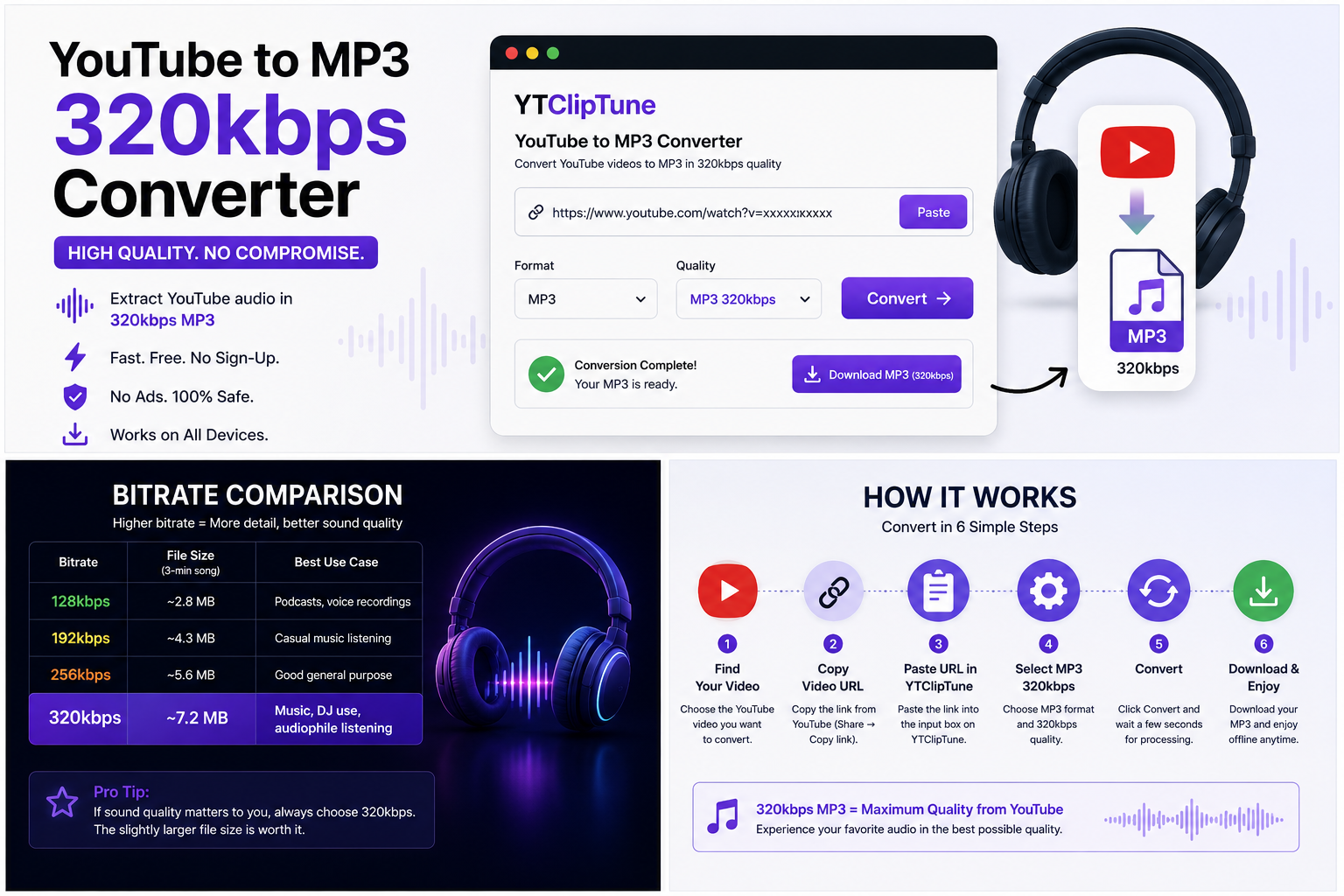
Here's a quick comparison of common MP3 bitrates:
Bitrate | File Size (3-min song) | Best Use Case |
|---|---|---|
128kbps | ~2.8 MB | Podcasts, voice recordings |
192kbps | ~4.3 MB | Casual music listening |
256kbps | ~5.6 MB | Good general purpose |
320kbps | ~7.2 MB | Music, DJ use, audiophile listening |
At 320kbps, an MP3 file is about as close to CD quality as the format can get. You'll hear the detail in cymbal shimmer, bass texture, vocal breathiness, and the space between instruments — things that lower bitrates quietly discard.
Is 320kbps Really Better? (The Honest Answer)
Yes — with one important caveat. A 320kbps YouTube converter can only preserve the audio quality that was in the original YouTube upload. It cannot add quality that was never there.
YouTube internally re-encodes audio, typically serving streams around 128–160kbps for standard videos. For music, YouTube often uses Opus codec at 160kbps, which is actually quite good. When you convert that to MP3 at 320kbps, you're not restoring lost frequencies — you're outputting the best available version at the highest MP3 container bitrate.
The practical result: 320kbps MP3 files from YouTube usually sound noticeably better than 128kbps downloads of the same video, especially on good headphones or car speakers. The difference is subtle on phone speakers.
Bottom line: If sound quality matters to you, always choose 320kbps. The slightly larger file size is worth it.
How to Use YTClipTune to Convert YouTube to MP3 320kbps (Step-by-Step)
The process on YTClipTune is designed to be fast and friction-free — no account, no software, no waiting around:
Step 1: Find your video on YouTube Search for the song, podcast, or audio content you want. Open it in your browser or the YouTube app.
Step 2: Copy the video URL On desktop, copy the URL from the address bar. On mobile, tap the Share button and select "Copy link." The link format looks like: youtube.com/watch?v=xxxxxxxxxxx
Step 3: Paste the URL into YTClipTune Head to YTClipTune and paste the link into the input field on the homepage. The tool will immediately begin reading the video metadata.
Step 4: Select MP3 format and 320kbps quality Open the quality dropdown and choose MP3 at 320kbps. YTClipTune clearly labels all bitrate options so you know exactly what you're getting before you download.
Step 5: Convert and download Click the Convert button. Processing typically takes 10–30 seconds depending on video length. Once complete, click the download link to save the MP3 file to your device.
Step 6: Enjoy offline The downloaded file works in any MP3 player — on your phone, in your car, or through desktop audio software.
What to Look for in a Good YouTube to MP3 320kbps Converter
Not all tools are equal. Here's what separates a trustworthy converter from the ones you should avoid — and why YTClipTune was built with each of these in mind. If you're new to the topic, our guide on YouTube to MP3 conversion covers the full picture before you dive into bitrate-specific choices.
Audio Quality Output
The tool should explicitly label 320kbps as an option — not vague terms like "high quality" or "best." YTClipTune shows the exact bitrate in the dropdown so you always know what you're downloading before you commit.
No Forced Software Downloads
Legitimate online converters work entirely in your browser. If a site asks you to install an extension, desktop app, or browser add-on before downloading, close the tab. That's a common vector for adware and malware.
Minimal or No Ads
Ad-heavy converters often use aggressive pop-ups, fake download buttons, and redirect loops that can expose your device to security risks. YTClipTune is fully ad-free — the page is clean, and the only button that matters is the one that downloads your file.
Speed and Reliability
A good converter processes a 4-minute song in under 30 seconds. Tools that stall, time out frequently, or show perpetual loading spinners indicate server problems or throttling.
No Account Required
You shouldn't need to register or log in to convert a YouTube video to MP3. Any tool requiring email sign-up for basic downloads is either harvesting data or gatekeeping free features unnecessarily.
HTTPS Security
Always check for the padlock icon in your browser's address bar. Submitting URLs on unencrypted (HTTP) sites is a minor security risk and also signals a poorly maintained service.
Device-by-Device Guide: Using Your 320kbps MP3
On iPhone (iOS)
After downloading through Safari, tap the download notification and select "Save to Files." From there, you can access it in the Files app or import it into Apple Music. For offline playback without Apple Music, third-party apps like VLC can open local MP3 files directly.
On Android
Downloads land automatically in your Downloads folder. Open your file manager or music app and it should appear. Most Android music players (like Samsung Music, Poweramp, or even Spotify's local files feature) pick up downloaded MP3s automatically.
On Windows
MP3 files save directly to your Downloads folder (or wherever your browser is set to save). Windows Media Player, foobar2000, VLC, and virtually every other media player supports them natively. No extra software needed.
On macOS
Safari downloads go to your Downloads folder. You can add the file to Apple Music by dragging it into the app, or open it directly in QuickTime, VLC, or any music player.
In Your Car
Transfer the MP3 to a USB drive and plug it into your car's USB port. Most vehicles with USB audio support read MP3 files directly. Alternatively, sync to your phone and play through Bluetooth.
320kbps vs. WAV vs. Opus: Which Format Should You Choose?
If you're serious about audio quality, it helps to understand how MP3 320kbps fits into the broader landscape of audio formats:
MP3 at 320kbps is the most universally compatible high-quality format. It plays on everything — old car stereos, budget Bluetooth speakers, every phone, every OS. Compression means you're not getting truly lossless audio, but the tradeoff is tiny files and universal support.
WAV (Waveform Audio) is uncompressed and lossless. A 3-minute song in WAV might be 30–50 MB versus 7 MB for MP3. Use WAV if you're editing or mastering audio in a DAW (digital audio workstation). For casual listening, the extra file size rarely justifies itself. If you specifically need to pull raw audio from a YouTube video for editing purposes, our dedicated guide on how to pull audio from a YouTube video walks through the best approach for that workflow.
Opus / OGG is a modern codec that's surprisingly efficient — it can match MP3 320kbps quality at around 128–160kbps. If a converter offers Opus, it's worth considering for saving storage without sacrificing much quality. The downside: older devices and car stereos may not support it.
For most people downloading music to listen offline, MP3 320kbps hits the sweet spot: excellent sound, manageable file size, and plays everywhere.
Common Problems and How to Fix Them
Even on a fast, reliable tool like YTClipTune, occasional hiccups happen. Here's how to handle the most common ones:
The converter doesn't show a 320kbps option Some videos on YouTube are uploaded at lower audio quality, and certain tools restrict available bitrates based on the source. Try a different converter, or check if 256kbps is available as a fallback — it's still very good.
The download starts but the file sounds wrong Incomplete downloads cause corrupted files. Make sure you keep the browser tab open and active while the conversion runs, especially on mobile. Switch to a stable Wi-Fi connection if you're on a slow or unstable mobile network.
The converted file won't play This can happen if the file didn't download fully, or if there was a server error mid-conversion. Delete the file and try again. If the problem persists, the video may have been geoblocked or removed, which prevents extraction.
The audio has noticeable artifacts or distortion This usually means the original YouTube upload was low-quality to begin with. 320kbps conversion will not repair poor source audio. Try looking for a higher-quality upload of the same content.
The process takes forever or times out Long videos (over an hour) take more time to convert. Use a stable connection, keep the tab visible and active (browsers may throttle background tabs), and try during off-peak hours if the server seems slow.
YouTube Shorts and Playlists: What You Should Know
YTClipTune handles YouTube Shorts the same way as regular videos. The URL format is slightly different (youtube.com/shorts/xxxxxxxxxxx), but the converter recognizes both formats automatically — just paste and go.
For playlists, paste the playlist URL directly into YTClipTune. The tool will process each video in the list as 320kbps MP3 files. Conversion times will be longer for large playlists, so keep the tab open and use a stable connection for best results.
Audio Quality Tips for Listeners Who Care
Getting the best experience from your 320kbps MP3 goes beyond the download itself:
Use a proper music player. Default phone speakers can't reveal the difference between 128 and 320kbps. A pair of decent headphones or earbuds — even a $30 pair — will let you actually hear the improvement.
Check your player's equalizer settings. Many music apps apply EQ presets that can muddy audio. Start with a flat EQ and adjust to taste rather than relying on pre-set "Bass Boost" or "Pop" modes.
Avoid re-encoding. If you move your MP3 to a different app or service, don't let it re-compress the file. Some streaming platforms re-encode uploaded audio, which degrades quality. Keep a local copy of your 320kbps original.
Match playback quality to your playback setup. 320kbps through a Bluetooth speaker in a noisy kitchen is indistinguishable from 128kbps. Save the high-quality files for when you can actually appreciate them — good headphones in a quiet room, or a proper car audio system.
Legal and Ethical Considerations
This is worth addressing directly. YouTube's Terms of Service prohibit downloading videos without explicit permission from the platform or the content creator. This applies regardless of the tool you use.
That said, converting videos for personal, offline use of content you have a right to access is treated very differently from distributing or monetizing downloaded content. The legal landscape varies by country — some jurisdictions permit personal format-shifting, others don't.
What you should never do:
Re-upload downloaded content to another platform
Distribute downloaded audio to others
Use downloaded music commercially without a license
What falls into a grey area:
Downloading a song to listen to offline that you've already paid for on another platform
Converting a public domain or Creative Commons-licensed video to MP3
When in doubt, use official download features where available. YouTube Premium offers legal offline downloads for subscribers. Many artists also offer free MP3 downloads directly from their own websites or Bandcamp pages.
Frequently Asked Questions
Q1: Are YT to MP3 converters legal?
Using a YouTube to MP3 converter for personal, offline listening exists in a legal grey area — it's not explicitly illegal in most countries, but it does go against YouTube's Terms of Service. Always avoid downloading copyrighted content for commercial use or redistribution.
Q2: Do YouTube to MP3 converters have viruses?
Many free converters are loaded with malicious ads, fake download buttons, and hidden malware. Always use a trusted, ad-free tool like YTClipTune that requires no software installation and works entirely in your browser — reducing your risk significantly.
Q3: What is the YouTube to MP3 converter that works?
YTClipTune is a fast, free, and ad-free YouTube to MP3 converter that works on any device without sign-ups or software downloads. Simply paste your YouTube URL, choose your quality, and download your MP3 in seconds.
Q4: How to convert audio to 320kbps?
To convert audio to 320kbps, paste your YouTube video URL into YTClipTune, open the quality dropdown, select MP3 at 320kbps, and click Convert. The tool extracts and outputs the audio at the highest standard MP3 bitrate automatically.
Q5: How to convert YouTube video to MP3 high-quality 320kbps?
Go to YTClipTune, paste the YouTube video link into the input field, select MP3 and choose 320kbps from the quality menu, then hit Convert. Your high-quality MP3 file will be ready to download in under 30 seconds.
Q6: Is 320kbps the highest quality audio?
320kbps is the highest standard MP3 bitrate and delivers near CD-quality sound for everyday listening. However, lossless formats like WAV and FLAC technically offer higher quality — though for YouTube-sourced audio, 320kbps MP3 captures the best available detail from the original upload.
Wrapping Up
A 320kbps YouTube converter is simply the right choice if you care about how your music sounds. You're not paying anything extra, the file size difference versus lower bitrates is modest, and the improvement on decent audio equipment is genuinely noticeable.
With YTClipTune, the process takes about 30 seconds: paste a YouTube URL, choose MP3 at 320kbps, and download. No accounts, no software, no ads, no complicated settings — just high-quality audio ready to play on any device.
Whether you're building an offline playlist for a road trip, saving podcast episodes for areas without signal, or just want your music library to sound its best — YTClipTune makes high-bitrate conversion as simple as it should be. For more step-by-step tutorials on getting the most out of YouTube audio, browse our full how-to guides.
Read More: Convert YouTube videos to MP3 — No Sign-Up Needed | YTClipTune