How to Pull Audio from YouTube Video in 2026 — 3 Free Methods
Whether you're a podcast creator grabbing a guest quote, a student saving a lecture, or a music lover who wants that perfect track offline — knowing how to pull audio from a YouTube video is a genuinely useful skill. And in 2026, it's easier than ever.
This guide covers every method that actually works: online converters, desktop software, mobile shortcuts, and format tips — along with what's legal and what isn't, so you stay on the right side of Google and copyright law. For more tutorials like this, browse our YouTube how-to guides.
1. Is It Legal to Pull Audio from YouTube?
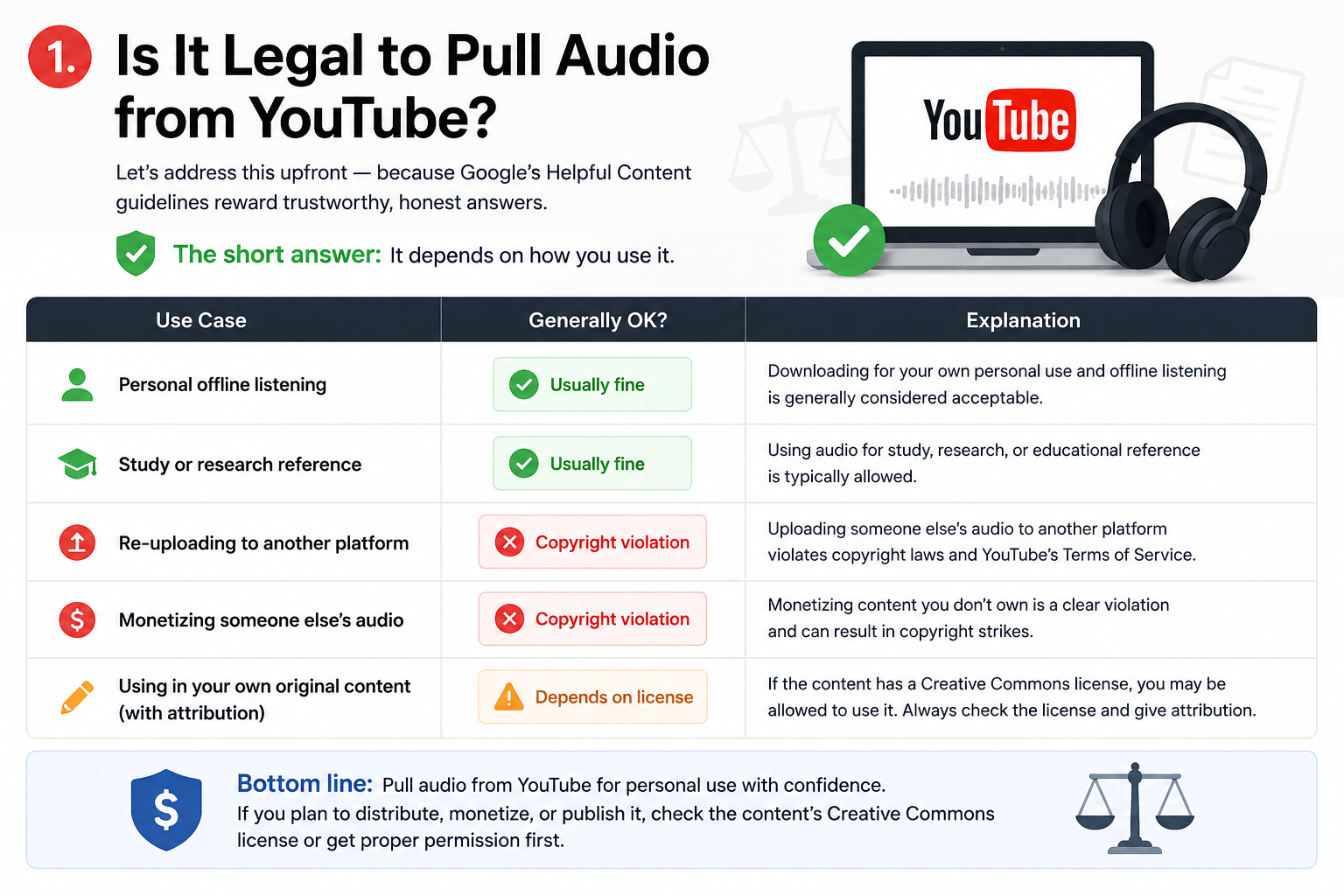
Let's address this upfront — because Google's Helpful Content guidelines reward trustworthy, honest answers.
The short answer: It depends on how you use it.
Use Case | Generally OK? |
|---|---|
Personal offline listening | ✅ Usually fine |
Study or research reference | ✅ Usually fine |
Re-uploading to another platform | ❌ Copyright violation |
Monetizing someone else's audio | ❌ Copyright violation |
Using in your own original content (with attribution) | ⚠️ Depends on license |
YouTube's Terms of Service technically prohibit downloading unless YouTube provides an official download button or you have written permission from the platform. However, for personal, non-commercial use, many jurisdictions recognize a fair use or private copying exception.
Bottom line: Pull audio from YouTube for personal use with confidence. If you plan to distribute, monetize, or publish it, check the content's Creative Commons license or get proper permission first.
2. Best Ways to Pull Audio from a YouTube Video
Here's a quick overview before we dive deep:
Method | Best For | Skill Level | Cost |
|---|---|---|---|
Online converter (YTClipTune) | Fast & simple | Beginner | Free |
Desktop app (CapCut, 4K Downloader) | Editing & batch | Intermediate | Free/Paid |
iPhone Shortcut | Mobile users | Intermediate | Free |
Android browser trick | On-the-go | Beginner | Free |
VLC Media Player | Offline, private | Intermediate | Free |
3. Method 1: Online Audio Extractors (No Software Needed)
Online tools are the most popular way to extract audio from YouTube videos — and for good reason. No installation, no account, no hassle.
How to Pull YouTube Audio with YTClipTune
YTClipTune is built specifically for fast, clean YouTube audio extraction. Here's all you need to do:
Copy the YouTube URL — go to the video, tap the address bar, and copy the link.
Go to YTClipTune.com — paste the URL into the search/conversion box.
Choose your format — MP3 for music and podcasts, WAV for editing, M4A for Apple devices.
Select audio quality — 128kbps for casual use, 320kbps for professional-grade output.
Click Download — your audio file saves directly to your device in seconds.
No sign-up. No ads cluttering the process. No hidden steps.
Why Online Tools Work for Most People
Works on any device — Windows, Mac, Linux, Chromebook
No storage used on your computer until you download
Most tools support multiple output formats
Fast conversion — most files ready in under 30 seconds
Pro Tip: Always look for a converter that shows bitrate options. Tools that lock you into 128kbps will give noticeably muddy audio compared to 192kbps or 320kbps output.
4. Method 2: Desktop Software for High-Quality Audio Extraction
When you need batch downloads, higher control over audio quality, or plan to edit the audio after extracting it, desktop software is the right move.
Option A: 4K YouTube to MP3
One of the most reliable desktop tools for ripping audio from YouTube videos:
Supports MP3, M4A, OGG formats
Paste a playlist URL and extract all audio at once
Lets you log into YouTube to access private or unlisted videos
Available on Windows, Mac, and Ubuntu Linux
Steps:
Download and install 4K YouTube to MP3 from the official site.
Paste your YouTube video or playlist URL.
Choose format and quality.
Click Download.
Option B: VLC Media Player (Hidden Feature)
VLC isn't just a player — it's a surprisingly capable YouTube audio extractor:
Open VLC → Media → Convert/Save → Network
Paste the YouTube URL
Choose "Convert" → set the profile to MP3
Select destination and click Start
This works entirely offline (after the initial stream load) and keeps your data private.
Option C: CapCut Desktop
If you're already editing video content, CapCut's "Detach Audio" feature lets you separate the audio track from any imported video file:
Import the downloaded YouTube video into CapCut's timeline
Right-click the video → select Separate Audio or Detach Audio
The audio track appears independently — trim, enhance, or export as needed
This is especially useful for content creators who want to reuse YouTube audio in their own productions.
5. Method 3: How to Pull Audio on iPhone & Android
iPhone: Pull YouTube Audio Without an App
Open Safari on your iPhone.
Navigate to an online converter like YTClipTune.com.
Copy the YouTube link from the YouTube app (tap Share → Copy Link).
Paste the link into YTClipTune and select MP3.
Tap Download — if it opens in a player instead, press and hold the audio and tap Download or Save to Files.
Find your file in the Files app under Downloads.
Android: Easiest Mobile Method
Android's browser handles downloads more naturally:
Open Chrome on Android.
Go to YTClipTune.com.
Paste your YouTube link, choose MP3.
Tap Download — Android will save the file directly to your Downloads folder.
Access it in your Files or Music app.
Note for iPhone users: Some iOS versions open audio files in the browser instead of downloading. Hold-press the download button and choose "Download Linked File" to force-save it.
6. How to Extract YouTube Audio Without Losing Quality
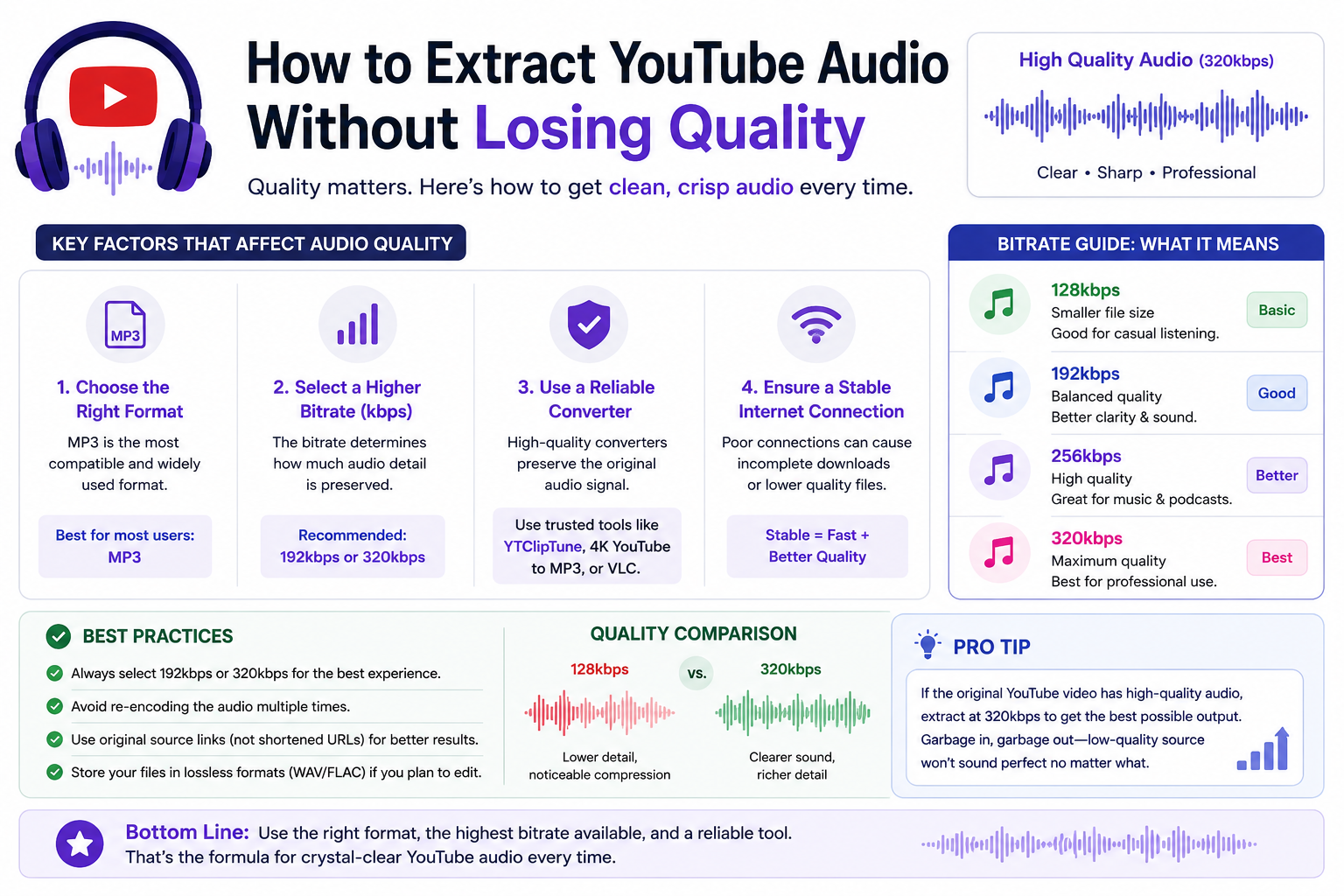
This is where most guides let people down. Quality isn't just about picking MP3 — it's about the entire pipeline.
Step 1: Start with the Highest-Resolution Video
YouTube embeds better audio in higher-resolution uploads. A 1080p or 4K video typically contains AAC audio at 192kbps or higher, while a 360p version might only have 96kbps. Always look for the HD version before extracting.
Step 2: Choose the Right Bitrate
Bitrate | Use Case |
|---|---|
96–128 kbps | Casual listening, small file size |
192 kbps | Podcasts, voice recordings, general use |
Music, professional audio, editing source |
For lossless quality, request WAV or FLAC output — these formats preserve every detail of the original audio signal without compression artifacts.
Step 3: Avoid Re-Encoding Chains
Every time audio gets re-encoded (converted from one compressed format to another), it loses quality. The cleanest workflow is:
YouTube (native AAC) → Extract once → Export to your final format
Avoid converting MP3 → WAV → MP3. Each generation of re-encoding degrades the signal.
Step 4: Preview Before Finalizing
Before saving your final file, listen for:
Unexpected cuts or silence at the start/end
Echo, reverb, or room noise in the original recording
Volume inconsistencies between speakers
7. Best Audio Formats: MP3 vs WAV vs M4A
Understanding which format to use is critical when you pull audio from YouTube videos for different purposes.
MP3 — The Universal Standard
File size: Small (3–5MB per minute at 192kbps)
Compatibility: Every device, every platform
Quality: Excellent for most uses; slight compression artifacts at lower bitrates
Best for: Music, podcasts, offline listening, general content
WAV — Uncompressed & Pristine
File size: Large (10MB+ per minute)
Compatibility: Windows, Mac, DAW software
Quality: No compression — what you get is exactly what was in the video
Best for: Professional editing, voiceover work, music production
M4A — Apple's Efficient Format
File size: Similar to MP3 but slightly better quality at the same bitrate
Compatibility: Apple ecosystem, most modern players
Quality: Better than MP3 at equivalent file sizes
Best for: iPhone users, Apple Music integration, streaming
OGG/OPUS — Open-Source Alternative
File size: Smallest of all at equivalent quality
Compatibility: Growing but not universal
Best for: Tech-savvy users, storage-constrained devices
Our Recommendation: Use MP3 at 192kbps or higher for 90% of use cases. Choose WAV only if you're editing the audio in professional software afterward.
8. YTClipTune: The Smarter Way to Pull Audio from YouTube
YTClipTune.com was built with one goal: give you the cleanest, fastest YouTube audio extraction experience without the noise — no pop-ups, no forced signups, no malware-adjacent download buttons designed to trick you.
What Sets YTClipTune Apart
Speed: Most conversions complete in under 20 seconds, regardless of video length.
Format flexibility: MP3, WAV, M4A — you choose what fits your workflow.
Quality control: Select bitrates from 128kbps up to 320kbps so you get exactly the quality you need.
No account required: Paste, convert, download. Done.
Works everywhere: Desktop browsers, iPhone Safari, Android Chrome — no app to install.
Playlist support: Drop in a playlist URL and batch-extract audio from multiple videos at once.
Whether you're a podcast producer pulling clips, a language learner grabbing study material, a music enthusiast building an offline library, or a content creator repurposing YouTube audio for your own projects — YTClipTune handles it cleanly and quickly.
9. FAQs
Q: Can I extract audio from a YouTube video?
Yes, you can extract audio from any YouTube video using free online tools like YTClipTune.com. Just paste the video URL, choose MP3 or WAV, and download — no software or signup needed.
Q: Is it possible to capture audio from YouTube?
Absolutely. Online audio extractors let you capture audio from YouTube videos directly in your browser. The process takes under 30 seconds and works on any device including iPhone and Android.
Q: Who is the most viewed singer on YouTube?
Baby Shark by Pinkfong holds the all-time most viewed video record, but among solo artists, Justin Bieber and Ed Sheeran consistently rank among the most viewed singers on YouTube globally.
Q: Can I extract audio from YouTube without software?
Yes. Browser-based tools like YTClipTune.com let you extract YouTube audio without installing any software. Simply paste the video link, select your format, and download the audio file instantly.
Q: Can ChatGPT convert YouTube to MP3?
No, ChatGPT cannot convert YouTube videos to MP3. It has no ability to access or download YouTube content. For free YouTube to MP3 conversion, use a dedicated tool like YTClipTune.com instead.
Q: How to convert YouTube to MP3 legally?
For personal, non-commercial use, converting YouTube to MP3 is generally accepted under fair use in most countries. Always avoid re-uploading or monetizing the audio — and check the video's Creative Commons license if you plan to use it publicly.
10. Final Thoughts
Knowing how to pull audio from a YouTube video opens up a huge range of possibilities — offline listening, content repurposing, podcast production, language learning, and more. In 2026, the tools to do it have never been better or more accessible.
The key takeaways:
For fast, free extraction on any device: YTClipTune.com is your go-to tool
For editing and professional use: Extract first, then clean up in Audacity or CapCut
For the best quality: Always start with a high-resolution video source and choose 192kbps MP3 or WAV output
For legality: Personal use is generally fine; commercial or redistribution use requires checking the content's license
Head to YTClipTune.com and pull the audio from that YouTube video you've been saving — it takes less than a minute.