How to Send Long Videos on iPhone (2026 Guide)
The best way to send long videos on iPhone is AirDrop for nearby Apple devices, an iCloud Link for long-distance sharing, Mail Drop for email (up to 5GB), or sending as a document on WhatsApp (up to 2GB) to avoid compression. This guide covers all six methods, step by step, so you keep your video quality intact — updated for iOS 18.
Okay, real talk. I've been there. You just recorded the perfect video — birthday cake, big reveal, your dog doing something hilarious — and the second you hit send, iPhone slaps you with that dreaded spinning wheel that never finishes.
Annoying, right?
Here's the good news: sending long videos on iPhone isn't actually hard once you know which method to use for which situation. I've tested pretty much every trick in the book, and I'm going to walk you through all of them below.
Let's get into it.
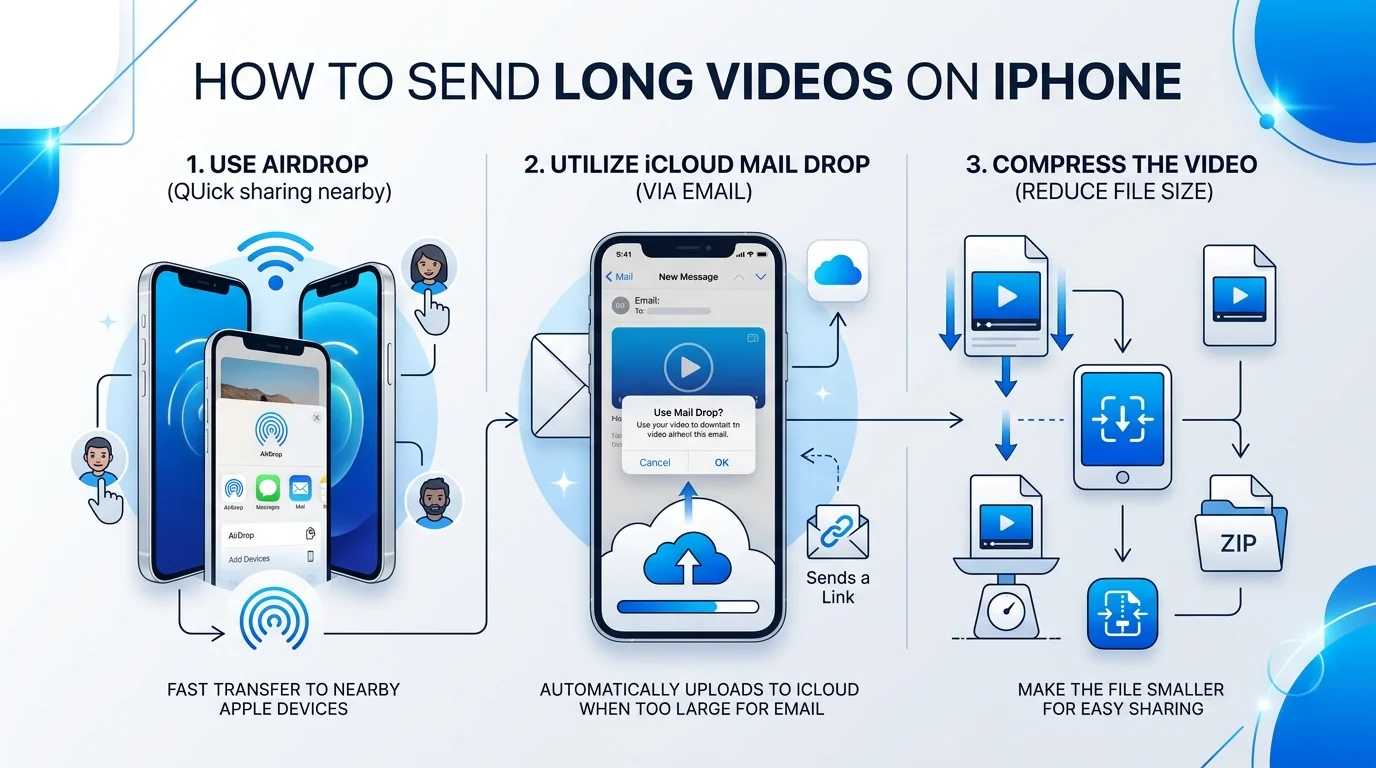
Why Does iPhone Even Struggle With Long Videos?
Quick context before we dive into solutions — because understanding why this happens will help you pick the right fix instead of guessing.
Your iPhone shoots gorgeous high definition video, sometimes in full 4K, and that quality comes at a cost: massive file sizes. A few minutes of 4K footage can easily balloon past 100MB, and that's where things get messy.
According to Gumlet's guide on sending large iPhone videos, videos larger than 100MB will often be automatically compressed, which tanks your video quality without you even realizing it happened. Not great if you care about how the final product looks.
If your iPhone storage is constantly full because of these big video files, it's worth doing a proper digital declutter first — it makes everything from backups to sharing a lot smoother.
So the goal here isn't just "how do I send this" — it's "how do I send this without wrecking the quality."
Method Comparison: Which One Should You Use?
Before we get into the step-by-step stuff, here's the fast version. I put together this table so you can just glance at it and pick your method in five seconds:
Method | Max Size | Speed | Best For | Compression Risk |
|---|---|---|---|---|
AirDrop | No real limit | Very fast | Nearby Apple devices | None |
iCloud Link | Tied to iCloud storage | Fast (upload once) | Long-distance sharing | None |
Mail Drop | 5GB | Moderate | Email-preferring recipients | None |
WhatsApp (as Document) | 2GB | Fast | Cross-platform sharing | Low |
WhatsApp (as Media) | Smaller | Fast | Quick casual clips | High |
Telegram | Up to 2GB (free) | Fast | Cross-platform, no compression | Very low |
Cloud Storage (Drive/Dropbox) | Depends on plan | Fast | Repeated sharing + backup | None |
Now let's break each one down.
Method 1: AirDrop (My Personal Favorite For Apple-to-Apple)
Honestly? If you're sending to another iPhone, iPad, or Mac, just use AirDrop. It's fast, it's free, and it doesn't compress anything.
Per Apple's own support documentation, AirDrop sends your video using Wi-Fi and Bluetooth, keeping the file in its original resolution.
Here's exactly how to do it:
Open the Photos app and find your video.
Tap the Share icon.
Choose AirDrop from the row of options.
Tap the recipient's device icon.
Wait a few seconds — done!
If it's not showing up, go to Settings > General > AirDrop and choose Everyone for 10 Minutes (especially if the recipient isn't in your contacts).
Pros
Zero compression, full original quality
No internet connection needed
Instant, no waiting on uploads
Cons
Only works between Apple devices
Both people need to be physically nearby
Method 2: iCloud Link (The Best Option For Long-Distance Sharing)
This one's a lifesaver when the person you're sending to isn't standing next to you.
An iCloud Link is basically a shareable URL for your video, and it works beautifully with Messages or Mail. Apple explains it well in their official guide — you upload once, and your recipient just downloads whenever they're ready.
Step-by-step:
Make sure iCloud Photos is turned on (Settings > [your name] > iCloud > Photos).
Open Photos, select your video, tap Share.
Tap Options, then choose Copy iCloud Link.
Paste that link into Messages, Mail, or literally any app.
Hit send.
Important: the link expires after 30 days. So don't rely on it for permanent storage — it's a delivery method, not a backup plan.
Pros
Works over long distances
Keeps original video quality
No third-party app required
Cons
Link expires in 30 days
Recipient needs internet access to download
Method 3: Mail Drop (When You Just Want To Use Email)
Sometimes you just want to fire off an email like it's 2010. I get it. That's where Mail Drop comes in.
Normal email attachments cap out around 25MB, which is laughably small for video. But Apple's Mail Drop feature quietly fixes that. As confirmed by Apple's Mail Drop support page, you can send attachments up to 5GB in size, and those files don't count against your iCloud storage.
How to use it:
Open Mail and start a new message.
Attach your video like normal.
If it's too big, Mail will prompt you: "Use Mail Drop."
Tap it, add your recipient, and send.
Pros
Up to 5GB per attachment
Doesn't eat into iCloud storage
Works from Mail on iPhone, iPad, and Mac
Cons
Recipient's inbox provider may still block large downloads
Slower than AirDrop for nearby transfers
Method 4: WhatsApp (But You Need To Do This One Trick)
Here's something most people don't know. If you upload your video the "normal" way on WhatsApp — through Gallery — it gets compressed, sometimes badly.
But there's a workaround.
According to Gumlet's breakdown of the process, you can send your video as a document instead of media, and that lets you push files up to 2GB with way less quality loss.
Here's how:
Open your chat in WhatsApp.
Tap the paperclip/attach icon.
Instead of Gallery, tap Document.
Browse the Files app for your video.
Select it and hit Send.
Small tweak. Big difference in quality.
Method 5: Telegram (The Underrated Option)
If you haven't tried Telegram for sending large videos, you're missing out. It handles big files (up to 2GB on the free tier) more gracefully than WhatsApp and generally applies far less compression by default.
It's especially handy if your recipient is on Android, since Telegram works identically across platforms — no quality mismatch between iPhone and Android users.
Method 6: Cloud Storage Apps (Google Drive, Dropbox, And Video Compression Tools)
If you're regularly sharing big video files, honestly, you should just be using a dedicated cloud tool. It saves so much hassle long-term.
Dropbox's own resource page puts it simply: you copy a link to your file in cloud storage, paste it wherever you need, and you're done — no re-uploading every time.
If storage space is your issue rather than sending, a video compression app can shrink file size before you upload — useful when quality loss is acceptable and speed matters more.
Pros
Acts as a backup, not just a delivery method
Easy to re-share the same link multiple times
No file size drama for most everyday videos
Cons
Free storage tiers fill up fast
Slightly more setup than AirDrop or iCloud Link
What About iMessage And MMS Limits?
Quick heads-up here, because this trips people up constantly.
iMessage isn't purely about file size — it's more about video length and resolution. Community reports (cited by Dropbox) suggest iMessage tends to cap out around 4 minutes 15 seconds at 720p/30fps before prompting compression. And MMS? Even stricter — often limited to just a few hundred KB depending on your carrier.
By the way, if you've ever sent a message on iPhone and immediately regretted it, that's a whole other headache — check out how to see deleted messages on iPhone if that's ever happened to you.
Frequently Asked Questions
Can I send a video over 5GB on iPhone?
Not directly through Mail Drop, since 5GB is Apple's hard cap. For anything larger, use a cloud storage service like Dropbox or Google Drive and share a link instead.
Why does my iPhone video look blurry after sending?
This almost always means the app you used compressed the file automatically — usually because it exceeded that 100MB threshold. Switch to AirDrop or an iCloud Link to avoid this.
What's the WhatsApp video size limit on iPhone?
2GB if you send it as a document. If you send it through the regular media picker, it gets compressed and the effective limit is much smaller.
Does AirDrop have a file size limit?
No. AirDrop has no meaningful file size limit — it's one of the only methods that reliably sends full-resolution video without any compression.
How long does an iCloud Link last before it expires?
30 days. After that, the link stops working, so don't treat it as long-term storage.
My Honest Recommendation
If you genuinely care about video quality — and you should, especially for things like client work, wedding videos, or content you're monetizing — stop relying on Messages or basic email attachments.
Use AirDrop when you're face-to-face. Use an iCloud Link, Telegram, or a proper cloud storage service for everything else. It takes literally thirty extra seconds, and it's the difference between your video looking crisp versus looking like a blurry mess from 2009.
Trust me — future you will thank present you for taking the extra step.