How to Add Audio to Google Slides (2026 Guide)
To add audio to Google Slides, you first upload an MP3 or WAV file to Google Drive, then use Insert > Audio inside your presentation to embed it on a slide. Once inserted, you can control playback settings like autoplay, looping, and volume through the Format Options panel. This works for voice-over narration, background music, podcasts, and sound effects, and takes under five minutes from start to finish.
Below, I'll walk you through every step, the exact settings you need, and the mistakes that trip up most people the first time.
Why Adding Sound to Your Slides Actually Matters
You know that feeling when you're sitting through a silent, static slideshow and your mind starts to wander?
Yeah. I've been there too.
A presentation with embedded audio feels alive. It feels intentional. It feels like you actually put effort into it.
Whether you're building a classroom presentation, a product demo, or a self-running slideshow for a booth, sound changes everything. It smooths over awkward transitions, sets the mood, and keeps your audience from checking their phones. And if you're also mixing in visuals, it's worth knowing how to put a video in Google Slides so your audio and motion elements work together instead of competing.
So let's fix that silence.
What File Types Does Google Slides Support?
Google Slides only supports two audio formats: MP3 and WAV. No M4A, no AAC, no raw voice memo straight off your phone without converting it first.
If you're recording your own voice-over narration, export it as one of those two formats, or Google Slides won't show it in your upload list at all. This is confirmed directly by Google's own presentation documentation and echoed in tutorials like SlidesAI's breakdown.
MP3 vs. WAV: Which Should You Use?
Format | File Size | Audio Quality | Best For |
|---|---|---|---|
MP3 | Small, compressed | Good, slightly lossy | Voice narration, sharing online, large decks |
WAV | Large, uncompressed | High-fidelity | Short clips, background music, professional playback |
If you're adding narration to every slide of a 30-slide deck, go with MP3 to keep file sizes manageable. If you're adding one polished music clip, WAV gives you cleaner sound.
Step-by-Step: How to Add Audio to Google Slides
Here's the process broken down into simple, repeatable steps.
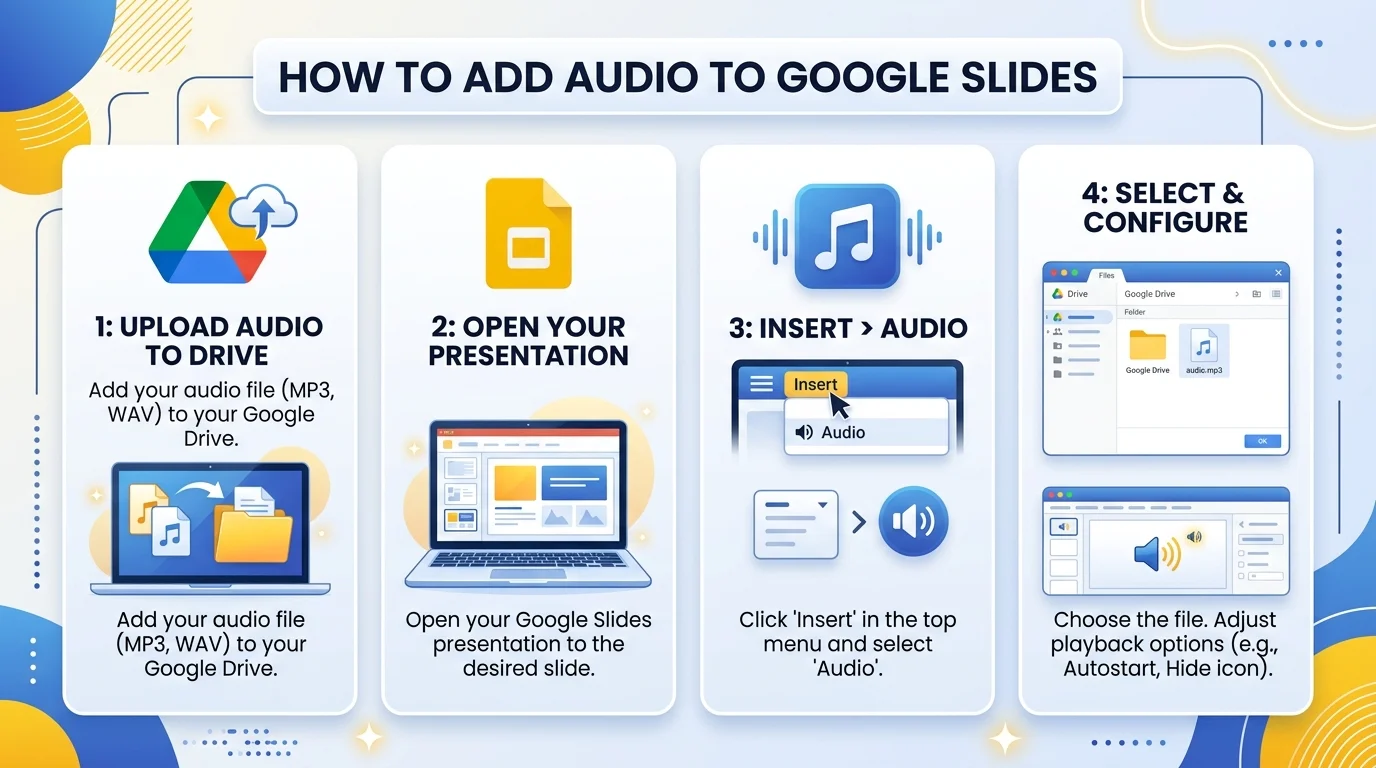
Step 1: Upload Your Audio File to Google Drive
Before Slides can use your file, it needs to live in your Google Drive.
Go to drive.google.com
Click New
Select File Upload
Choose your MP3 or WAV file
Name your file descriptively. If you're adding multiple clips across a big deck, "audio1.mp3" will become confusing fast.
Step 2: Insert the Audio Into Your Slide
Open your presentation and click on the slide where you want the sound.
From the top menu, click Insert, then choose Audio. A window pops up showing your Drive files — select the one you uploaded and hit Select.
A small speaker icon now appears on your slide, as shown in walkthroughs from Shake Up Learning and Voice123. That icon is your embedded audio, ready to configure.
Step 3: Customize Your Playback Settings
This is the step most people skip, and it's the one that determines whether your audio actually works the way you want.
Click the audio icon, then select Format options from the toolbar. A sidebar opens with these settings:
Start Playing
Choose On click or Automatically. For a self-running slideshow, always choose Automatically.
Loop Audio
Toggle this on if you want the clip to repeat continuously rather than play once and stop.
Hide Icon When Presenting
Turn this on if you don't want the speaker icon visible to your audience during the talk.
Volume
Adjust this so your audio isn't too quiet or too overpowering relative to your voice if you're presenting live.
Read Also: How to Share Google Calendar: Step-by-Step Guide
Can You Loop Background Music Across Your Whole Deck?
Here's the part most tutorials gloss over.
Google Slides does not offer one global background track that plays continuously across every slide. Each audio clip is tied to the specific slide it's inserted on, and playback stops the moment you advance, as explained in this autoplay troubleshooting guide.
If you want continuous sound, you have three workarounds:
Insert audio on your first slide and set it to Automatically + Loop
Embed a YouTube video with autoplay and loop enabled, a method detailed by Slidestack
Convert your entire deck into a video using screen recording software, then layer music over it in a video editor
None of these are perfect, but they work depending on how you're presenting.
Where to Find Royalty-Free Audio
You want good music, not elevator hold-music vibes. Here's where creators commonly source tracks:
Source | License Type | Best For |
|---|---|---|
YouTube Audio Library | Free | Budget-friendly background tracks |
Epidemic Sound | Subscription | High-quality, broad catalog |
Premium Beat | Per-track license | One-off professional purchases |
Soundstripe | Subscription | Unlimited downloads for regular use |
Always check the licensing terms before commercial use — it's a five-minute check that saves a headache later. If you'd rather generate a synthetic voice track instead of recording your own, it's worth reading what neural TTS is before you pick a narration tool.
Common Mistakes to Avoid
Mistake #1: Uploading the wrong format. If your file isn't MP3 or WAV, Slides won't let you select it.
Mistake #2: Forgetting sharing permissions. If you share your deck with someone who doesn't have access to the audio file in your Drive, the sound won't play for them.
Mistake #3: Assuming autoplay always works. Browser autoplay policies can silently block sound on published links, a quirk confirmed across multiple troubleshooting threads. Always test in an incognito window before presenting.
Mistake #4: Assuming one setting covers the whole deck. There's no universal autoplay switch — you need to configure playback per slide, per clip.
Frequently Asked Questions
Can I record audio directly inside Google Slides?
No. Google Slides has no built-in recording tool. Record your voice-over separately using QuickTime, Windows Voice Recorder, or a phone app, then upload the finished file.
Does audio play automatically when I share a link?
Not always. Browser autoplay restrictions can block it even if your Slides setting says "Automatically."
Can I add more than one audio clip per slide?
Yes. Insert multiple audio files on the same slide by repeating the Insert > Audio steps for each one.
What's the difference between adding audio and adding video with sound?
Audio embeds a standalone sound file tied to one slide, while video (including embedded YouTube clips) carries its own synced audio and can be looped as a background-music workaround.
Final Thoughts
Adding audio to Google Slides is a small effort: upload, insert, adjust playback settings. But it changes how your entire presentation feels, turning a static deck into something that actually holds attention.
Grab a royalty-free track or record your narration, and give your next presentation the voice it deserves.