How to Clear Cache on iPhone Fast — Full 2026 Guide
Quick answer: To clear cache on iPhone, go to Settings → Apps → Safari → Clear History and Website Data for your browser cache, or Settings → General → iPhone Storage to offload individual apps. iOS doesn't have one universal "clear all" button like Android, so you'll need to handle your browser and your apps separately. Below, I'll walk you through every method, step by step.
If you've ever stared at that dreaded "iPhone Storage Almost Full" pop-up, you know exactly how annoying it feels.
I've been there too.
So today, I'm going to walk you through how to clear cache on iPhone using real, tested methods — the same ones I use on my own device every single month.
By the end of this guide, you'll know exactly how to free up storage, speed up sluggish apps, and stop those annoying storage warnings for good.
If you've ever stared at that dreaded "iPhone Storage Almost Full" pop-up, you know exactly how annoying it feels. I've been there too — and if cache isn't the only thing cluttering your device, you might also want to declutter your digital files while you're at it.
Let's dive in.
What Is Cache (And Why Does Your iPhone Store So Much Of It)?
Before you start deleting things, it helps to understand what you're actually dealing with.
Cache is basically temporary data that apps and websites save on your phone so things load faster next time.
Think of it like a shortcut.
When you open Instagram, for example, it saves images and videos locally so it doesn't have to re-download them every time you scroll back up.
Sounds helpful, right?
It is — until it isn't.
Over time, this cached data piles up quietly in the background. In fact, social apps like Instagram and TikTok commonly accumulate 500MB to 2GB of cached data through regular use alone, according to Hot Shot's iPhone storage breakdown.
According to Apple's own support documentation, clearing this data regularly can help resolve performance issues and free up meaningful space.
And unlike Android, Apple doesn't give you one universal switch to flip.
You've got to go app by app.
Annoying? Kind of. Worth it? Absolutely.
Why You Should Clear Cache On iPhone Regularly
I'll be honest with you — I ignored this for years.
Then my iPhone started lagging, apps were crashing randomly, and I couldn't figure out why.
Turns out, cache buildup was the silent culprit the whole time.
Here's why clearing it actually matters:
Frees up storage space so you can actually take photos without panic-deleting old ones
Speeds up app performance, since bloated cache slows down loading times
Fixes glitchy apps that show outdated content even after refreshing
Helps your iPhone storage management stay clean long-term
Reduces the chances of your phone freezing mid-task
One report from Proton's iPhone storage guide points out that browsers and apps quietly accumulate temporary files that "work against you" over time, causing slowdowns and crashes.
Most users who go through a full cleanup reclaim 2–5GB of storage in under five minutes, per TMS Outsource's cache-clearing guide — which is honestly a bigger difference than people expect.
So yeah — this isn't just a nice-to-have. It's basic iPhone maintenance.
How To Clear Safari Cache On iPhone (Step-By-Step)
Let's start with the browser, because Safari is usually the biggest offender.
If you use Safari daily, it's constantly stockpiling browsing history, cookies, and website data in the background — even when you don't notice it happening.
Here's exactly how to wipe it clean, based on Apple's official Safari cache guide:
Open the Settings app on your iPhone
Scroll down and tap Apps
Find and select Safari
Scroll down and tap Clear History and Website Data
Choose your timeframe (or select "All History" for a full wipe)
Tap Clear History to confirm
That's it. Seriously.
Now, one quick heads-up — this action will sign you out of websites you were logged into.
So if you've got a bunch of accounts you access through Safari, just be ready to log back in.
Your saved passwords and bookmarks, though? Those stay put, as confirmed on Apple's Delete your Safari history support page.
Clearing Cache On Chrome Or Firefox (If You Use Them Instead)
Maybe Safari isn't your thing. That's fine.
For Chrome:
Open the Chrome app
Tap the three-dot menu
Go to Browsing Data
Select Cached Images and Files
Tap Delete Data
For Brave or Firefox, just poke around in the settings for anything labeled "Privacy" or "Clear Browsing Data" — it's usually right there.
How To Clear App Cache On iPhone (This Is The Big One)
Unlike Safari, iOS doesn't give individual apps a dedicated "clear cache" button in most cases.
So instead, you've got two main options: offload the app, or delete and reinstall it entirely. Here's a quick side-by-side before I break each one down:
Method | Storage Reclaimed | Data Kept | Time Required | Best For |
|---|---|---|---|---|
Offload App | Moderate | Yes — settings, documents, login stay | ~1 minute | Apps you use occasionally |
Delete & Reinstall | Maximum | No — full wipe, re-login required | ~3–5 minutes | Apps that rebuild cache fast (Instagram, TikTok) |
In-App Clear Cache | Low–Moderate | Yes — app-specific settings preserved | ~30 seconds | Apps with built-in storage tools (Spotify, YouTube) |
Restart iPhone | Minimal | Yes — no data affected | Instant | Quick glitches, not storage issues |
Method 1: Offload App (The Safer Option)
This is honestly the method I use most often.
Offloading an app removes the app itself from your phone but keeps your documents, settings, and data intact.
When you tap the app icon again later, it reinstalls automatically.
Here's how to do it:
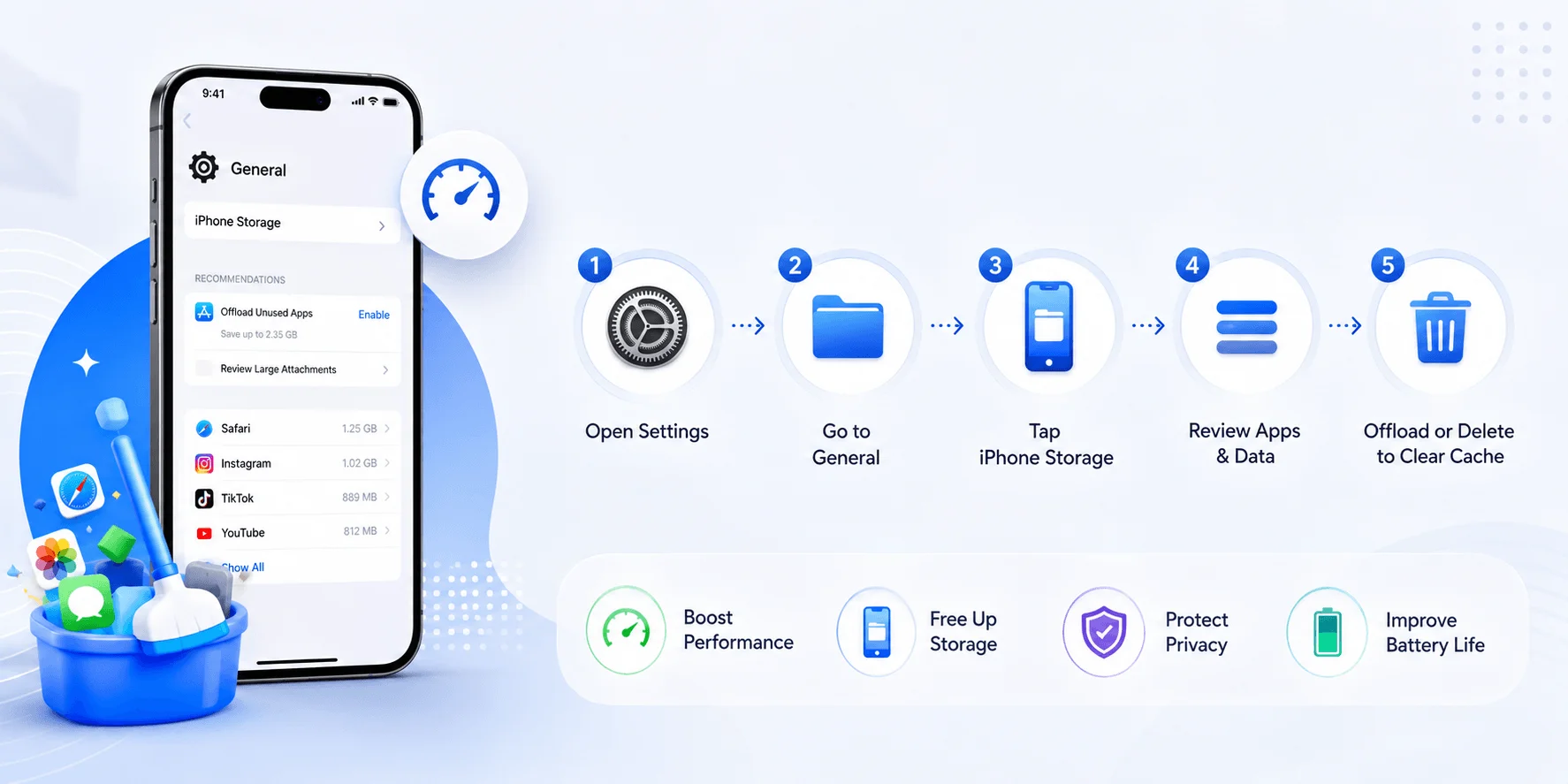
Go to Settings
Tap General
Select iPhone Storage
Wait a few seconds while it calculates your storage (don't panic, it's normal)
Scroll down and tap the app you want to clear
Tap Offload App
Confirm your choice
This is the gentle route — the one Tom's Guide recommends as the safest first step before doing anything more drastic.
Method 2: Delete And Reinstall (The Nuclear Option)
Sometimes offloading just isn't enough.
Apps like Instagram and TikTok are notorious for rebuilding their cache almost immediately after you offload them.
If that's happening to you, it's time to go nuclear.
Long-press the app icon on your home screen
Tap Remove App
Select Delete App
Head to the App Store
Search for the app and reinstall it
Log back into your account
This wipes everything — cache, documents, settings, all of it.
Most of your account data lives in the cloud anyway, so you're not actually losing anything important. Just a bit of setup time.
How To Clear Cache For Specific Popular Apps
Some apps are bigger storage hogs than others. Here's the quick version for the usual suspects.
Go to Settings → General → iPhone Storage, find Instagram, and offload it. Look for the faded icon afterward and tap it to reinstall.
TikTok
Open TikTok
Tap your Profile
Tap the three-line menu icon (top right)
Go to Settings and Privacy
Tap Free Up Space
WhatsApp doesn't have one single "clear all" button. You'll have to go chat by chat:
Open WhatsApp
Go to Settings → Storage and Data
Tap Manage Storage
Select individual chats to review and delete cached media
YouTube And Spotify
Both apps let you clear cache from within their own settings menus. Look under Settings → Storage inside each app for a direct "Clear Cache" or "Free Up Space" button.
What About "System Data" On iPhone?
If you check your iPhone Storage breakdown and see a mysterious category called "System Data" or "Other" eating up several gigabytes, that's not a bug.
According to 7labs' iPhone storage guide, this category includes caches, logs, and temporary files your iPhone uses to run smoothly behind the scenes.
There's no direct toggle to wipe this category clean, but here's what helps:
Restarting your iPhone clears some temporary memory
Offloading unused apps reduces their contribution to system data
Clearing Safari's website data (Settings → Apps → Safari → Advanced → Website Data → Remove All Website Data) can shave off hundreds of MBs
That last tip is one most guides skip entirely — but it genuinely makes a difference.
Common Myths About Clearing Cache On iPhone
Myth #1: Force-quitting apps saves battery and storage. Nope. Apple has confirmed this isn't true — it can slow things down since the app has to fully reload from scratch next time you open it.
Myth #2: Clearing cache deletes your photos or contacts. False. Clearing app cache only removes temporary files — your photos, messages, and contacts stay completely untouched.
Myth #3: There's a universal "Clear Cache" button somewhere in Settings. I wish. iOS makes you do this manually, app by app.
If videos are eating up your storage rather than cache, check out this guide on how to send long videos on iPhone without them taking up unnecessary local space.
Frequently Asked Questions
Does clearing cache delete my photos on iPhone?
No. Clearing cache only removes temporary files like cached images, browsing data, and app-generated junk. Your photos, contacts, and messages are never touched.
How often should I clear cache on my iPhone?
Once a month is plenty for most people. Only clear more often if you notice apps lagging, crashing, or your storage warning popping up repeatedly.
Is offloading an app safe?
Yes. Offloading removes the app itself but keeps your documents, settings, and login data intact. It's the safest first step before deleting an app entirely.
Will I lose my Instagram or TikTok account data if I clear cache?
No. Your account data lives on the platform's servers, not just your phone. You'll just need to log back in after a full delete-and-reinstall.
Why doesn't iPhone have a "Clear All Cache" button like Android?
Apple designs iOS around app sandboxing, meaning each app manages its own storage separately. This is more secure but means there's no single system-wide cache switch.
Does restarting my iPhone clear cache?
Partially. A restart clears temporary memory (RAM), which can fix minor glitches, but it won't clear stored cache files taking up disk space.
How Often Should You Clear Cache On iPhone?
Honestly? You don't need to do this daily.
I'd recommend checking your iPhone Storage settings once a month, or whenever you notice:
Apps taking longer to load than usual
Your phone feeling generally sluggish
That storage warning popping up again
An app showing outdated content even after refreshing
A quick monthly cleanup habit is more than enough to keep things running smoothly. While you're optimizing your iPhone, it's also worth knowing how to see deleted messages on iPhone in case you ever need to recover something important.
Final Thoughts
Clearing cache on your iPhone isn't complicated once you know where to look.
It just takes a few extra taps compared to Android.
Start with Safari, move on to offloading your biggest apps, and go nuclear with a delete-and-reinstall only when you really need to.
Do this once a month, and you'll rarely see that "Storage Almost Full" warning again.
Your iPhone will thank you for it.