How to Block YouTube: 2026 Guide | Any Device
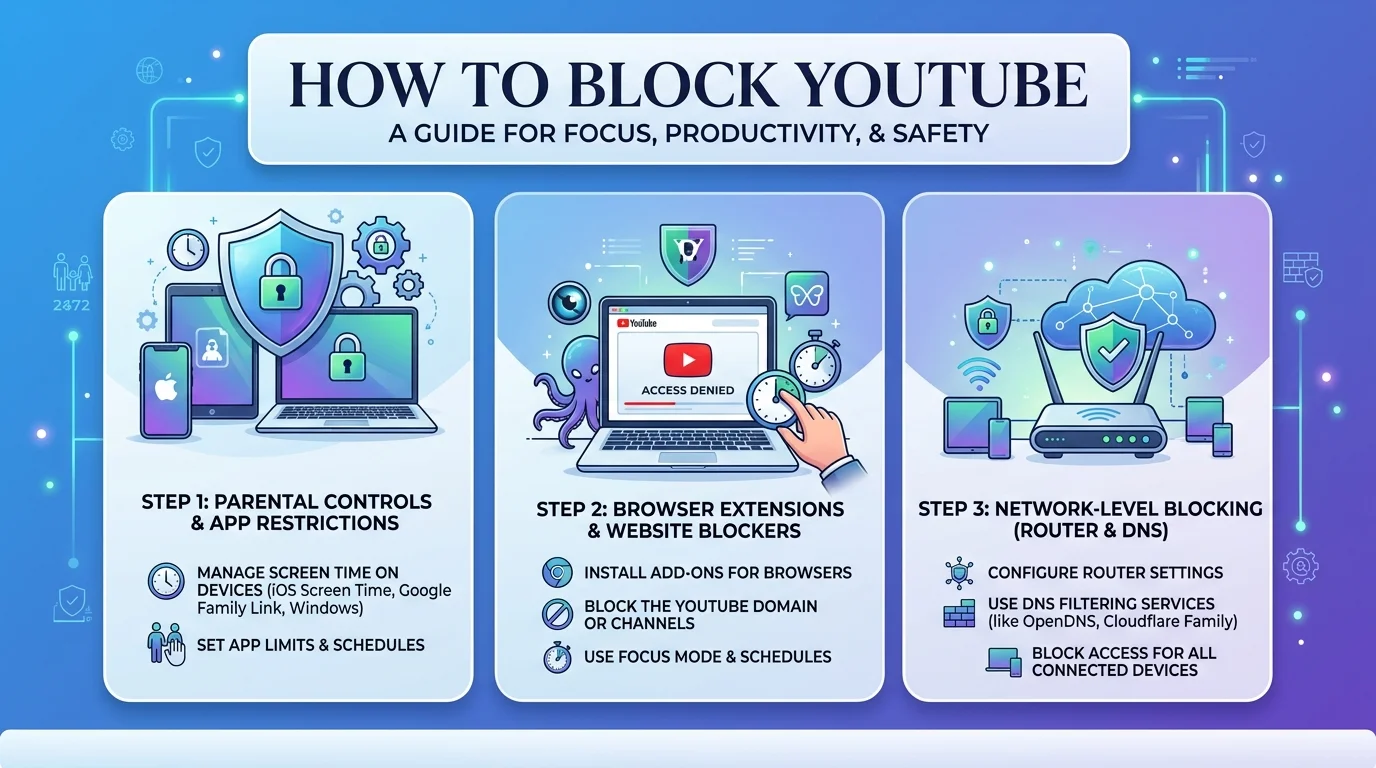
You can block YouTube using built-in phone settings (Screen Time or Digital Wellbeing), router-level or DNS filtering for network-wide blocking, or a dedicated parental control app like Qustodio or Bark for the most reliable, hardest-to-bypass solution. The best results come from combining all three layers rather than relying on just one.
Let's be honest for a second.
You've tried the "just don't watch it" approach. It didn't work. YouTube addiction is real — the average user spends close to an hour a day on the platform, and according to Technobezz, that's largely because the autoplay algorithm is designed to keep you (or your kid) glued to the screen.
So here's what I'm going to do.
I'm going to walk you through every method I've researched to block YouTube — from the simplest built-in phone setting to full network-wide content blocking, plus how to handle Smart TVs, Mac, and Windows. No fluff. Just steps that actually work.
If part of your struggle is also YouTube pulling you back in through downloaded clips and saved audio, it's worth reading about whether YouTube-to-MP3 tools are actually safe too — it's often another sneaky access point people forget to close off.
Let's dig in.
Why You Might Need to Block YouTube (And Why It's Harder Than It Looks)
Here's the thing nobody tells you upfront: YouTube isn't just an app anymore.
It's a website, a mobile app, a Smart TV app, and a browser extension all rolled into one. That means blocking "the app" often isn't enough — YouTube just pops back up through Safari or Chrome.
This is why so many people give up halfway through. They disable the app, feel accomplished, and then find their kid (or themselves) watching YouTube Shorts through a browser tab twenty minutes later.
You need a layered strategy. Let's build one.
Step 1: Block YouTube Directly on Your Phone
This is where most people start, and honestly, it's the easiest win.
On iPhone: Use Screen Time
Apple's built-in Screen Time feature is genuinely underrated. Per Blank Spaces' 2026 guide, here's how to set it up:
Open Settings and tap Screen Time
Tap Content & Privacy Restrictions and enable it
Go to Allowed Apps and toggle YouTube off
For the browser version, go to Content Restrictions > Web Content, select Limit Adult Websites, and manually add youtube.com to the Never Allow list
Pro tip: set a passcode that isn't your birthday. You'd be surprised how many parents get outsmarted by a ten-year-old who knows their own birth date.
On Android: Use Digital Wellbeing or Family Link
Android gives you a bit more flexibility here. Digital Wellbeing lets you set app timers directly:
Open Settings > Digital Wellbeing & Parental Controls
Tap App Timers
Select YouTube and set your limit
If you're managing a child's device, Google Family Link is the better call — 9meters notes it lets you block the app outright rather than just timing it.
Neither of these stops YouTube from loading in a mobile browser, though. That's where the next layer comes in.
Step 2: Block YouTube on Mac, Windows, and Smart TVs
Phones aren't the only screens in the house. Here's how to close the rest of the gaps.
On Mac and Windows
Both operating systems let you block YouTube through hosts file editing or built-in family controls:
On Windows, go to Family Safety settings via your Microsoft account and add youtube.com to the blocked sites list under Content filters
On Mac, open System Settings > Screen Time > Content & Privacy Restrictions > Content Restrictions, then add youtube.com to restricted websites
Alternatively, edit your device's hosts file to redirect youtube.com to a blank address — a more technical but highly effective method
On Smart TVs
According to 9meters' device-by-device breakdown, the steps vary by brand but follow a similar pattern:
Press the Menu or Home button on your remote
Navigate to Parental Controls or System > Parental Controls
Set a PIN if you haven't already
Select App Lock and block the YouTube app, or delete it entirely if your TV allows it
If your TV doesn't support app-level blocking, router-level blocking (below) will still cut off YouTube for that device since it's connected to the same Wi-Fi network.
Step 3: Block YouTube at the Network Level
Device settings are a good start. But if you want YouTube gone — not just limited, but gone — you need to go up a level.
Router-Level Blocking
Most modern routers have a parental control or website filtering panel built right in. Here's the general process, per Mobicip's router guide:
Find your router's IP address (usually something like
192.168.1.1)Log in using your admin credentials
Look for URL Filters or Access Restrictions
Add
youtube.comand its related domains to the blocked listSave and restart the router if needed
This applies the block to every device on your Wi-Fi — no more sneaking around on a tablet nobody thought to check.
DNS Filtering: The Smarter Way
Router settings can be clunky, and kids figure them out fast. A cleaner solution is DNS filtering through a service like NextDNS or OpenDNS.
Create a free account with NextDNS
Go to Parental Control > Websites, Apps & Games
Add YouTube to your blocked services list
Configure your router (or individual devices) to use your NextDNS profile
The beauty of this? It works across your entire home network — phones, tablets, smart TVs, laptops — all in one place, set once and running in the background.
Step 4: Use a Dedicated Parental Control App
If you want something more robust — something that doesn't require fiddling with router settings every time your kid finds a workaround — this is where a dedicated app changes the game.
App | Best For | Platform Support | Key Feature |
|---|---|---|---|
Qustodio | All-around control | iOS, Android, Windows, Mac | Detailed activity reports across all devices |
Bark | Content & message monitoring | iOS, Android | AI-based alerts for concerning content |
FamiSafe | Simple app blocking | iOS, Android | One-tap App Rules to block YouTube instantly |
Boomerang | Android-heavy households | iOS, Android | YouTube App History Monitoring on Android |
According to Boomerang's parent guide, iOS parental control apps are limited by Apple's App Store policies, so their depth of control is naturally shallower than what's possible on Android. If most of your household runs Android, an app like Boomerang or Bark will give you far more granular visibility — including what was searched, not just what was watched.
Here's why I'd recommend going this route if you're serious about it:
Granular control — block YouTube entirely, or just certain content categories
Cross-device syncing — one dashboard controls every device in the house
Real-time monitoring — see what's being searched and watched, not just whether the app is open
Bypasses browser loopholes — unlike Screen Time, these apps typically block the mobile website too
If you've read this far and you're still manually adjusting router settings every week, I'll say it straight: you're making this harder than it needs to be. A proper parental control app pays for itself the first time your kid doesn't find a workaround.
Step 5: Combine Restricted Mode With Everything Else
One thing worth mentioning: YouTube itself has a built-in Restricted Mode that filters mature content.
It's not a full block — think of it more as a content filter:
Open the YouTube app
Tap your profile icon
Go to Settings > General
Toggle on Restricted Mode
This won't stop someone from using YouTube for hours. But it will stop them from stumbling into content they shouldn't see. Pair it with a time-limiting tool, and you've got a solid combo.
If part of the problem is a cluttered phone full of downloaded clips and half-finished distractions, it might also help to declutter your digital files alongside setting these blocks — a cleaner device is a lot easier to keep boundaries on.
FAQ: Blocking YouTube
Can you permanently block YouTube on a phone?
Yes — combining Screen Time or Digital Wellbeing restrictions with DNS-level blocking (like NextDNS) makes it very difficult to bypass, especially if the passcode is unknown to the user.
Does Restricted Mode stop autoplay or Shorts?
No. Restricted Mode only filters mature content — it doesn't limit time spent or stop autoplay. You'll need an app timer or parental control app for that.
Can kids bypass router-level YouTube blocks?
Yes, if they switch to cellular data or use a VPN. Router blocking works only on your home Wi-Fi, so it's best paired with device-level restrictions.
What's the easiest way to block YouTube on multiple devices at once?
DNS filtering (NextDNS or OpenDNS) or a cross-platform parental control app like Qustodio are the fastest ways to apply one rule across every device in your home.
Is blocking YouTube through the hosts file safe?
Yes, it's a standard and reversible method, though it requires some technical comfort since it involves editing a system file directly.
Final Thoughts
Blocking YouTube isn't a one-click fix — but it also isn't as complicated as it looks once you break it into layers.
Start with device-level restrictions (Screen Time or Digital Wellbeing), add network-level filtering (DNS or router blocking) for whole-home coverage, and bring in a dedicated parental control app for the times someone's determined to find a loophole.
If you're managing multiple devices or a household full of tech-savvy kids, don't waste your evenings fighting router menus — a tool built specifically for this, like Qustodio or Bark, will save you the headache and give you visibility you simply can't get from built-in settings alone.