How to Use a YouTube Downloader for 1080p Files
Last week my little brother sent me a video he made. His own video, from his own channel.
He wanted the raw 1080p file back so he could re-edit it on his laptop. Simple, right? He lost the original.
So he asked me. And I said sure, easy, I'll pull it in a minute.
Then I actually tried. And man, it was not a minute.
The first tool I found handed me a file that looked sharp but had zero sound. Dead silent. The second one gave me sound but the video was blurry, like 480p blurry.
That's when I fell down a rabbit hole. And I figured if I was confused, a lot of you are too.
So let me walk you through what I learned about pulling a clean 1080p file. The stuff that actually matters, none of the fluff.
Why 1080p is trickier than it looks
Here's the thing nobody tells you upfront.
When you watch a video in your player, it feels like one file. Video and sound, together, playing nice.
But behind the scenes, once you go above 360p, that's not how it works. The video track and the audio track are two separate files.
I did not know this until last week. It blew my mind a little.
So when a cheap tool grabs your 1080p, it sometimes only grabs the video half. That's why my first download had no sound.
Or it does the lazy thing and grabs the low combined stream, the one that has both baked in. But that combined stream tops out low. That's your blurry 480p.
So the real trick with 1080p is this. You need a tool that pulls both halves and stitches them back together.
When it does that correctly, you get one clean file. Sharp picture, full sound, exactly like you watched it.
First rule, only pull what's yours to pull
I want to say this early because it matters.
I only do this with videos I actually have the right to save. My own uploads. My brother's uploads. Stuff that's public domain or clearly free to reuse.
That's not me being preachy. It's just the smart way to stay out of trouble. I go deeper on the clean way to save your own YouTube videos if you want the full picture.
If it's your own channel, you already have every right in the world to your own file. Same if a creator gave you the green light.
We keep it clean, we keep it simple. That's the whole vibe here.
Okay, now let's get into the actual how-to.
Step one, grab the right link
This part sounds obvious but people mess it up constantly.
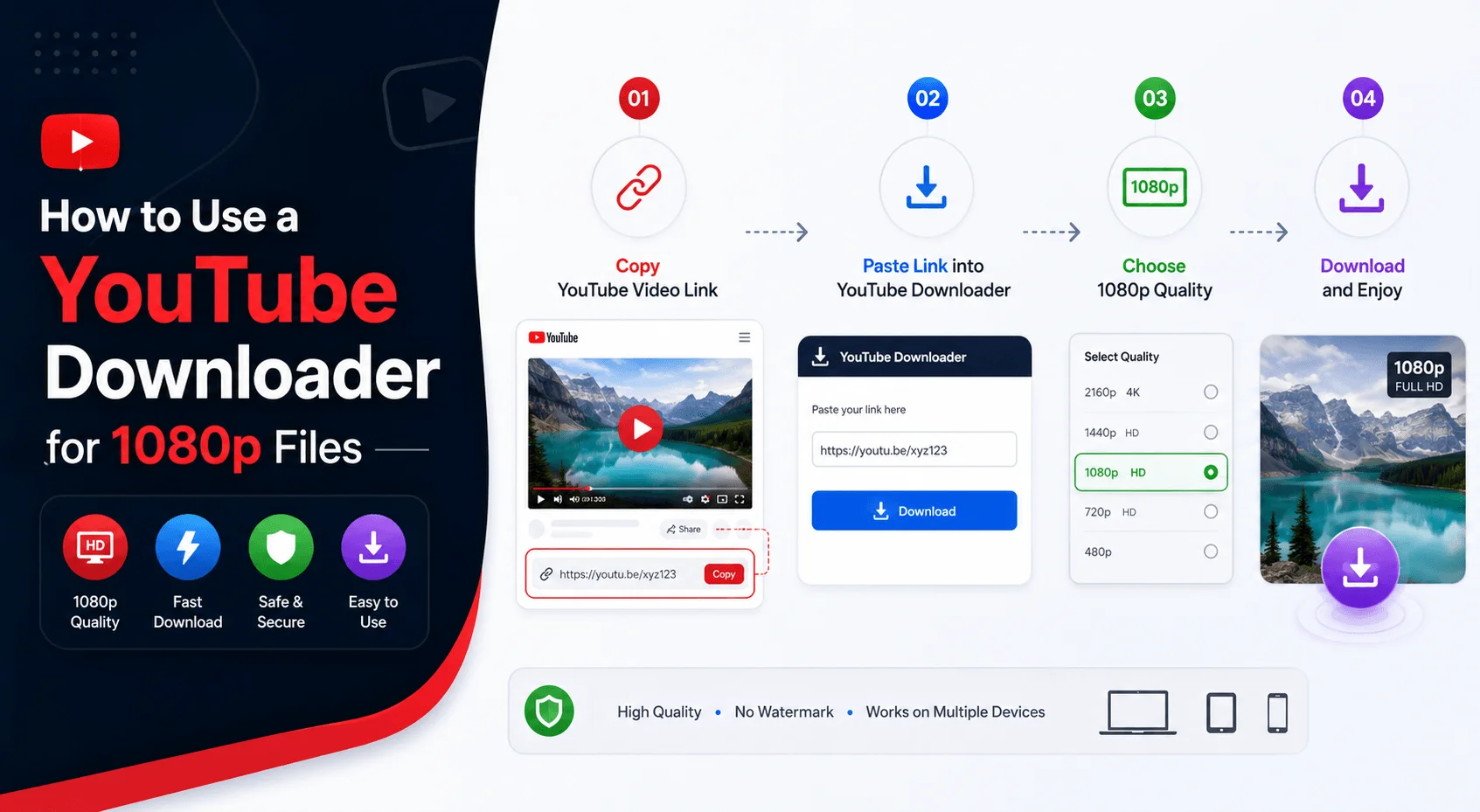
Open the video you want. Go up to the address bar and copy the full link.
Not a shortened link. Not a link with a bunch of random words stuck in front of it. Just the clean one.
A good link looks like the normal watch page, or the short share version. Both work fine.
If you copied it from a share button, double check there's nothing weird attached to the end. Extra junk in the link is the number one reason a downloader says "can't find video." If it keeps failing on you even with a clean link, I wrote a whole breakdown on why a download fails and how to fix it that's worth a look.
I always paste it into a blank note first just to eyeball it. Takes two seconds and saves me a headache.
Step two, paste it and pick your quality
Now you drop that link into your tool of choice.
Give it a second. It should detect the video and show you the title and thumbnail so you know it grabbed the right one.
Then you get your quality options. This is the important part.
You'll usually see a list. 360p, 720p, 1080p, sometimes 4K if the original was uploaded that high.
Pick 1080p. Obviously. That's why we're here.
But here's a heads up. If 1080p isn't even showing up, that means the original video was never uploaded in 1080p. No tool can invent quality that was never there. It can't upscale magic pixels out of nowhere.
So the max you can pull is whatever the creator originally uploaded. If they capped it at 720p, 720p is your ceiling. That's just how it works.
Step three, choose MP4 and download
When it asks for a format, I go MP4 every single time.
Let me tell you why I'm so stubborn about this.
MP4 just works. Every phone, every laptop, every editing app, every player your cousin has on his ancient tablet. It all reads MP4.
There are other formats floating around, like WebM or MKV. They're fine for stashing videos away in a folder.
But the second you try to edit them or play them on something older, they start acting up. Some editors flat out refuse to open them. If you want to really understand the difference, I broke down the common audio and video formats and when to use each.
So I dodge all that. MP4 keeps my life boring in the best way.
Once you've got MP4 and 1080p selected, hit download. For a short video, it's usually done in under fifteen seconds.
The file drops into your Downloads folder, or it asks where you want it. And that's it. You've got your clean 1080p.
The stuff I wish I knew earlier
Let me save you some pain with a few things I picked up.
Rename your files right away. The default name is always some random string of numbers and letters.
I name mine like this. Topic, then creator, then a little tag. Something like "brother_vlog_march_1080p" so future me can actually find it.
Trust me, three months from now you will not remember what "video_8847xz.mp4" is. I've lost files to lazy naming more times than I want to admit.
Next thing. Watch your storage. 1080p files are chunky, way bigger than 720p.
If you're pulling a bunch of them, they eat your drive fast. So I toss the important ones onto an external drive or cloud backup.
Because devices die. Phones get wiped during updates. I've lost stuff that way and it stings.
A quick word on those sketchy free sites
You've seen them. You search for a downloader and get a wall of pages covered in fake buttons.
Five buttons that say "Download," and four of them are traps that fling you off to some sketchy software bundle.
I hate those. We all hate those.
Here's my rule. If a page is throwing pop-ups at me, asking me to allow notifications, or begging me to install some app, I close it.
A good tool does its job right there in the browser. No installs. No account. No drama.
That's actually the whole reason I care about this stuff. I run sites myself, and I know how easy it is to do it the clean way. So when I see people getting jerked around by ad farms, it bugs me.
You deserve a tool that just works and gets out of your way.
What about editing after you download?
This comes up a lot, so let me touch on it.
If you're pulling 1080p because you plan to edit, you made the right call grabbing the highest quality.
Here's my logic. You can always shrink a file down later. You can never add quality back that wasn't there.
So I always download the biggest, sharpest version I can. Then I compress it after, once I know what I actually need.
If the original had 4K and you plan on heavy editing, honestly grab the 4K. Your edits will look cleaner and you'll thank yourself.
But for most normal stuff, 1080p is the sweet spot. Sharp enough to look great, small enough that your laptop won't choke on it.
My honest take after all this
So after that whole rabbit hole, here's where I landed.
Pulling a 1080p file isn't hard once you get why it's split into two tracks. That one fact explains ninety percent of the weird problems people hit.
No sound? Tool only grabbed video. Blurry? Tool grabbed the lazy low stream. Now you know.
Get a clean link. Paste it. Pick 1080p and MP4. Download. Rename it. Back it up if it matters.
That's the whole game. My brother got his file back, re-edited it, and we both learned something.
And now you've got the same playbook I do. Go pull that file the right way.
FAQ
Why does my 1080p download have no sound?
The tool only grabbed the video track and skipped the audio track. Use one that merges both back into a single file.
Can I download any video in 1080p?
Only if the original was uploaded in 1080p. If it wasn't, that option won't appear and you can't force it.
Is MP4 or WebM better for 1080p?
MP4, easily. It plays and edits on almost everything, while WebM trips up older devices and some editors.
Do I need to install software to get 1080p?
Nope. A solid browser-based tool handles single videos with no install and no account.
How big is a 1080p file?
Bigger than 720p by a good margin. Back up the ones you care about and watch your storage.
Should I download 1080p or 4K for editing?
If the original has 4K and you're editing heavily, grab 4K. For everything else, 1080p is the sweet spot.
Read More: YouTube to Sound Converter: Free Online Tool (2026)