YouTube Shorts Converter: Convert Videos Free
Every creator eventually hits the same wall: a video shot in landscape, but a platform that only wants vertical. That's exactly the gap a YouTube Shorts Converter closes. Instead of relearning an editing program, you upload a clip, and the tool reframes it into a clean 9:16 aspect ratio automatically. This works whether your footage is a podcast recording, a webinar, or raw phone video. Add animated captions, adjust the crop, and export a watermark-free file in under a minute. No installs, no learning curve, just a finished vertical clip. Below, we cover exactly how the process works, step by step, plus every platform it fits.
Convert Your Video for YouTube Shorts
Getting your video into the right shape shouldn't feel like a chore. Our free YouTube Shorts converter puts everything you need on one screen. You drop your file in, and the tool does the heavy lifting.
This is the part of the process people actually care about. Everything else, the guides, the tips, the comparisons, exists to support this one moment. So let's break down exactly what happens when you convert.
Upload a Video File or Paste a Link
You can start two ways. Either upload a file straight from your device, or paste a video URL. Most tools accept a wide range of formats, including MP4, MOV, WEBM, MKV, M4V, AVI, MPEG, HEVC, and even GIF. If your footage lives on YouTube, TikTok, or Instagram, you can usually just paste the link instead of downloading anything first. If you'd rather grab an existing clip first, our guide on converting YouTube Shorts to MP4 walks through that separately. This drag-and-drop upload approach removes friction right from the start, and pasting a video URL saves you a whole extra step.
Auto-Crop to 9:16 Vertical
Once your video loads, the tool applies auto-reframe automatically. This means it detects the main subject, whether that's a face, a product, or on-screen text, and keeps it centered as it crops from 16:9 to 9:16. You don't need to manually drag a crop box around. The software does the tracking for you, frame by frame, so nothing important gets cut off.
Preview and Adjust Framing
Automation is great, but you still get the final say. Before exporting, you can preview the vertical version and nudge the crop framing if something looks off. Maybe a logo got clipped, or a caption sits too close to the edge. A quick manual adjustment fixes that in a few clicks, giving you a properly ratio-safe output every time.
Download Watermark-Free MP4
When everything looks right, you export. The best tools give you a clean watermark-free export, meaning no logo or branding gets stamped across your footage. You get a straightforward MP4 file, ready to upload to YouTube Shorts or any other platform, with full 1080p resolution intact.
How to Convert a Video to YouTube Shorts Format (Step-by-Step)
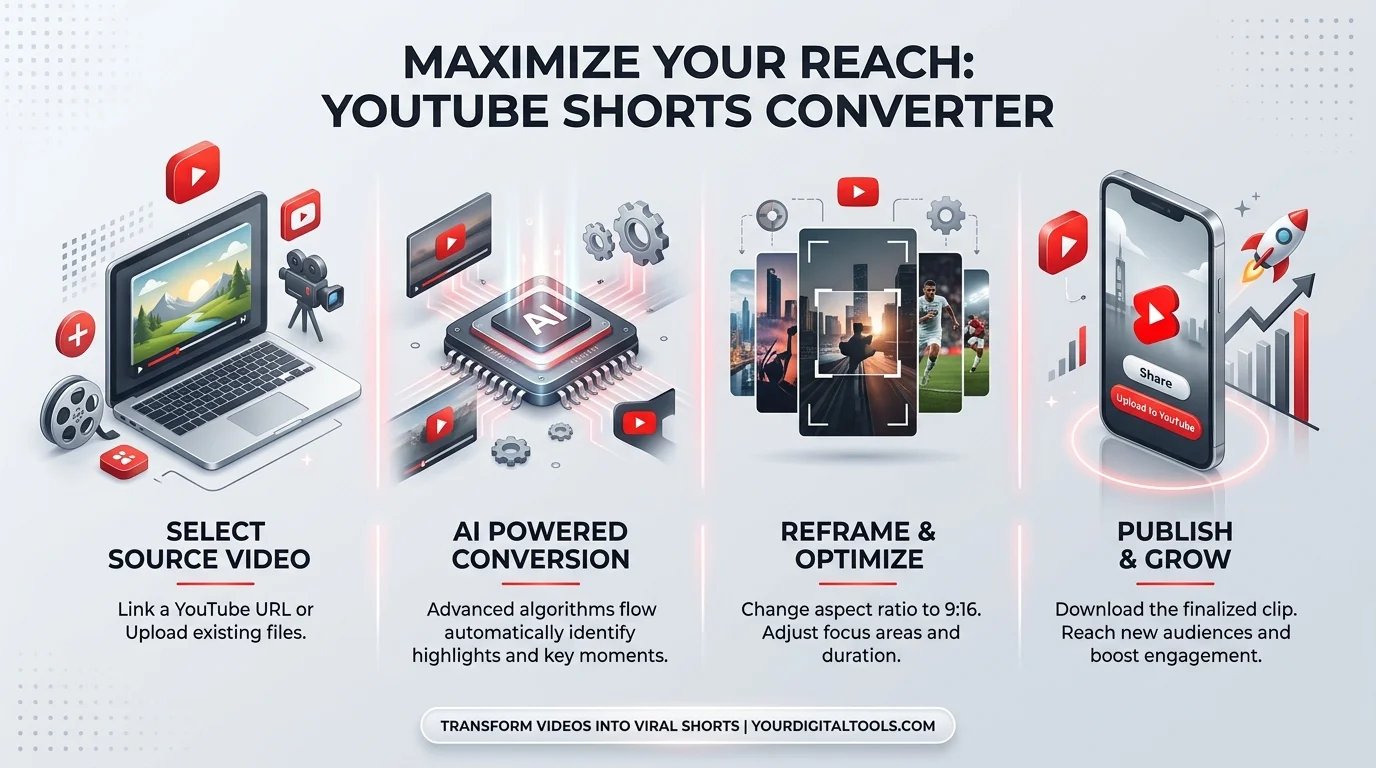
If you're wondering exactly how to convert video to YouTube Shorts, the process only takes five steps. It works the same whether you're on a laptop or a phone.
Here's the thing about vertical conversion: it sounds technical, but it isn't. Most people finish their first conversion in under two minutes. Below is the full walkthrough, step by step.
Step 1 — Upload or Import Your Video
Start by dropping your video file into the converter, or paste a link if your footage already lives online. Support usually covers Vimeo, Twitch, Google Drive, Zoom recordings, Rumble, Loom, Riverside, StreamYard, and Dailymotion exports too. This flexibility matters if your raw footage is scattered across different platforms.
Step 2 — Select 9:16 Aspect Ratio
Next, choose your output ratio. For YouTube Shorts, that's always 9:16 vertical. Some tools also offer 1:1 square for feed posts, but Shorts specifically requires the tall, full-screen format to display properly in the Shorts feed.
Step 3 — Reframe or Crop Automatically
The tool now applies AI clipping logic to reposition your footage. This step relies on highlight detection to figure out which part of the frame matters most. If you're filming two people talking, some converters even switch to a split-screen or picture-in-picture layout automatically, so both speakers stay visible.
Step 4 — Add Captions (Optional)
This step isn't required, but it's worth doing. Animated captions boost watch time, especially since so many people scroll with the sound off. You can choose from different caption styles and templates, including karaoke-style or word-by-word captions that highlight text in sync with speech.
Step 5 — Export and Download
Finally, hit export. Your finished clip downloads in seconds, formatted correctly and free of watermarks. From here, you're ready to publish directly to YouTube Shorts or save it for later.
Convert for Every Platform, Not Just YouTube
Here's something worth knowing: the same 9:16 vertical video works across almost every major platform. You don't need five different converters for five different apps.
One converted file can serve your entire content calendar. That's the real value of a good YouTube Shorts converter — it saves you from repeating the same crop-and-export process over and over for each platform.
Convert for Instagram Reels
Instagram Reels uses the same 9:16 format as Shorts. Export once, and the file works for both without any changes.
Convert for TikTok
TikTok also runs on full-screen vertical video. A properly cropped Shorts export drops straight into TikTok with no resizing needed.
Convert for Facebook Reels
Facebook Reels mirrors the Instagram and TikTok specs. One export, three platforms covered.
Convert for LinkedIn
LinkedIn video increasingly favors vertical formats too, especially for native uploads that autoplay in the feed.
Convert for X (Twitter)
X (Twitter) supports vertical video in the timeline, making it another easy destination for the same exported clip.
Why Use an Online YouTube Shorts Converter (No Software Needed)
Traditional editing software asks a lot of you. Downloads, updates, steep learning curves. An online converter skips all of that.
You open a tab, upload your video, and you're done. There's no installation, no waiting for renders on a slow laptop, and no monthly subscription just to crop a clip. That's a meaningful shift for anyone who just wants results fast.
No Download or Installation Required
Everything happens in your browser-based, no-install workflow. You don't need admin permissions on a work laptop or extra storage space on your phone.
Works on Any Device (Desktop, Mobile, Tablet)
Because it runs in the browser, the tool works the same on a desktop, a tablet, or a phone. You can convert a clip on your commute just as easily as at your desk.
Fast Batch Conversion
Got ten clips to convert? Batch processing handles multiple videos at once, instead of forcing you to repeat the same steps one file at a time.
100% Watermark-Free Exports
Free doesn't have to mean compromised. A properly built converter gives you a watermark-free export even on its free tier, unlike some tools that lock clean exports behind a paywall.
Key Features of Our YouTube Shorts Converter
Beyond the basic crop-and-export function, a strong YouTube Shorts converter comes packed with tools that save real editing time. These features turn a simple converter into something closer to a full content repurposing engine.
Think of it less like a one-trick tool and more like a small editing suite built specifically for short-form output. Here's what that typically includes.
Smart Auto-Reframe
AI Reframe tracks faces and subjects as they move, adjusting the crop dynamically instead of using one fixed frame for the entire clip.
AI Auto-Captions & Subtitles
Auto subtitles get generated automatically from your video's audio, with transcript generation running in the background. Some tools also support full video translation and AI dubbing, letting you localize a single clip into multiple languages. Only need the sound, not the video? Our guide on downloading Shorts audio covers that separately.
Trim, Cut, and Merge Clips
Beyond cropping, you can also handle basic video trimming and cutting right in the same interface. Need to combine two clips? Merging functionality lets you do that without opening a separate editor.
1080p/4K Resolution Export
Quality matters. A serious converter should output at full 1080p resolution, with some premium tools now pushing into 4K for creators who need maximum sharpness. If you're chasing the sharpest possible source file first, see our 1080p YouTube downloader guide for tips on preserving quality before you convert.
Batch Processing for Multiple Videos
For creators managing a full content calendar, bulk editing across dozens of clips at once turns hours of manual work into a single click.
Who Uses a YouTube Shorts Converter
Vertical video isn't a niche need anymore. It's become the default format for short-form content everywhere, and that means a wide range of people rely on conversion tools daily.
Consider a podcast host who records in landscape but wants clips for YouTube Shorts the same afternoon. Or a small business owner without a video editor on staff. Both land in the same place: they need a fast, reliable way to reformat footage, and neither wants to learn professional editing software just to do it.
Content Creators & Influencers
Creators use converters to turn one long recording into dozens of shareable viral clips, feeding multiple platforms from a single filming session.
Marketers & Brands
Marketing teams repurpose webinars, product demos, and testimonials into short, scroll-stopping ads without hiring a separate editing team.
Educators & Course Creators
Course creators slice long lessons into digestible vertical snippets, making complex topics easier to promote and discover on social feeds.
Business Owners & Agencies
Agencies managing multiple client accounts need speed above all else, since channel growth and audience reach depend on consistent, frequent posting.
YouTube Shorts Converter vs. Manual Editing
It's a fair question: why not just use Premiere Pro, Final Cut Pro, or DaVinci Resolve instead? Those tools are powerful, but they're also built for a different job entirely.
Manual editing software gives you deep control, but that control comes at the cost of time and a real learning curve. For quick, repeatable conversion tasks, a dedicated converter usually wins on speed without sacrificing much quality.
Factor | YouTube Shorts Converter | Manual Editing Software |
|---|---|---|
Setup time | Instant, browser-based | Requires install and setup |
Learning curve | Minimal | Steep for beginners |
Speed per clip | Under 2 minutes | 10–30+ minutes |
Cost | Free or low-cost | Often subscription-based |
Best for | Fast, repeatable conversion | Deep, custom editing |
Speed Comparison
A converter finishes a crop-and-export job in under two minutes. The same task in Premiere Pro or Final Cut Pro can easily take ten times longer once you factor in manual keyframing.
Quality & Resolution
Both approaches can output clean 1080p resolution footage. The difference isn't quality, it's how much manual effort it takes to get there. Our HD YouTube downloader guide covers how to source the cleanest possible footage before you even start editing.
Cost (Free vs. Paid Tools)
Editing suites like DaVinci Resolve are free but demand a real time investment to learn. Paid tools like Premiere Pro add a subscription cost on top of that learning curve.
Frequently Asked Questions
What is the correct aspect ratio for YouTube Shorts?
The correct ratio is 9:16 vertical. This fills the full mobile screen and matches the format YouTube's Shorts feed expects for proper display.
How do I convert a 16:9 video to 9:16 for free?
Upload your file to a free YouTube Shorts converter, select 9:16 as the output ratio, and let the auto-reframe feature handle the crop before you export.
Does converting a video for Shorts reduce quality?
No, not if you use a converter that supports 1080p resolution export. Quality loss usually only happens with low-grade tools or heavy compression settings.
Can I convert a YouTube video into a Short?
Yes. Many converters let you paste a YouTube link directly, skipping the download step, then crop and export the clip in vertical format.
Is there a watermark on the converted video?
It depends on the tool. Good converters offer a genuine watermark-free export, even on their free plans, while some competitors reserve clean exports for paid tiers.
What's the maximum length for a YouTube Short?
As of 2026, YouTube allows Shorts up to three minutes long, though shorter clips under 60 seconds still tend to perform best for retention.
Can I convert videos on mobile?
Yes. Since the tool runs in your browser, it works the same on a phone or tablet as it does on a desktop computer.
More Free Video Tools
A YouTube Shorts converter is just one piece of a larger toolkit. Once your video is vertical, a few other tools can round out your workflow before you hit publish. If you need to save a Short someone else posted, our YouTube Shorts downloader guide covers that, and our full walkthrough on how to download YouTube Shorts goes step by step.
Video Cropper
For manual control over framing, a standalone cropper lets you set exact crop dimensions by hand.
Auto Caption Generator
Generate animated captions separately if you want more control over timing, fonts, and styling before adding them to your clip.
AI Video Clipper
Feed in a long recording and let AI curation pull out the strongest viral moments automatically, saving you from scrubbing through hours of footage.
Aspect Ratio Converter (1:1, 16:9, 9:16)
Need square or landscape versions too? A dedicated ratio converter handles every format from one source file.
Start Converting Your Video for YouTube Shorts — Free
Getting your content into the right shape shouldn't slow you down. A reliable YouTube Shorts converter turns any raw video into a clean, vertical, watermark-free clip in minutes, not hours.
Upload your first video today, and see how fast a properly cropped, caption-ready Short comes together. No downloads, no learning curve, just a finished clip ready to post. For more guides like this one, browse the full YTClipTune blog.